Company and Staff
Staff
Overview
The Staff feature in 2getHR provides administrators and back office users with a comprehensive environment for managing employee data throughout the entire lifecycle — from onboarding and verification to withdrawal or reactivation. It allows employees to be created, edited, withdrawn and verified while respecting internal company rules and external systems such as bexio and Azure Active Directory (AD). The feature includes extensive forms, filters, bulk actions and customizable table views for HR operations and management teams.
Access this feature via Company > Staff in the sidebar. It is primarily intended for Administrators and Backoffice, while employees have read-only access to their own data. It integrates information from organizational units, payroll systems and external directories to maintain synchronized employee records. The main view lists all company employees and provides workflow dialogs for adding, verifying, withdrawing and reactivating employee records.
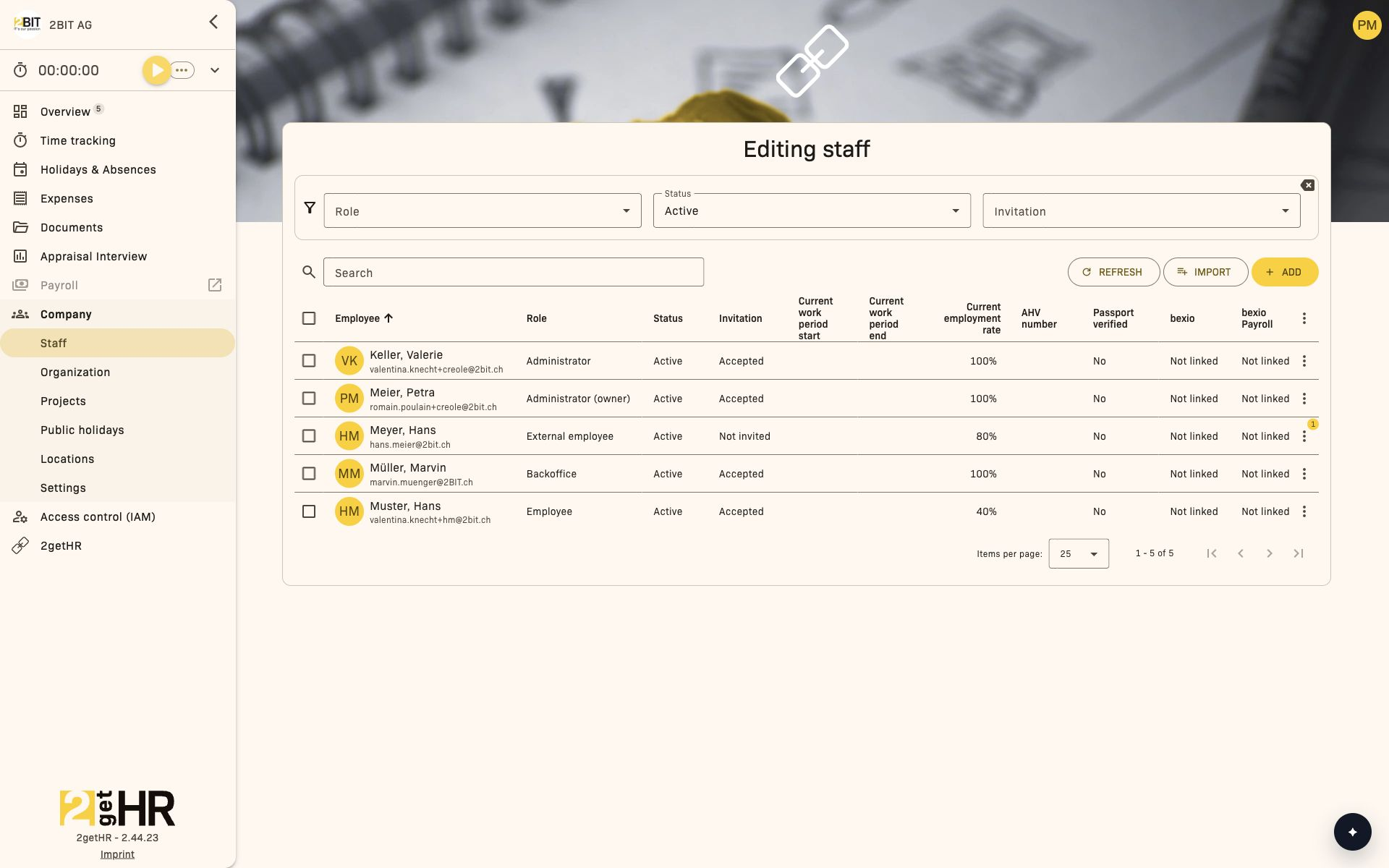
Management view (employee list and table)
The employee list page displays all staff records in a filterable, sortable table. Administrators and back office staff can manage employees; additional role and record restrictions apply to individual actions, as described below. The main components are:
Filters:
- Role: Filter by employee role (Administrator, Employee, External employee, etc.).
- Status: Filter by current employee status (Active, Withdrawn, Disabled).
- Invitation: Filter by invitation status (Sent, Expired, Not invited).
- Location: Filter by company location when several exist.
Changing filters updates the table dynamically.
Table columns:
The employee table shows detailed information for each employee, including:
- Employee (full name): Shows identity and linking status.
- Current employment rate, period start/end: Shows employment contract details.
- Email, Email bounced, Role, Status, Invitation: Key identification and system status fields.
- bexio / AD links: Indicators of external synchronization status and links.
- Organizational unit and location: The person's organizational hierarchy context.
These columns can be customized in the table settings dialog, where visibility can be toggled for all fields except the mandatory Employee column.
Actions per employee row:
- Details (Admin, Backoffice)
- Withdraw / Reactivate (Administrator, Backoffice; where the action is permitted for the employee)
- Delete (Administrator, Backoffice; permitted only if no dependencies prevent deletion)
- Verify (Admin, Backoffice)
- Invite (management roles)
- Request unblock (when Email bounced is displayed)
- Link to Azure AD / bexio / Payroll (Admin, Backoffice)
- Unlink from Azure AD / Unlink from bexio (Admin)
- Push / sync operations (Backoffice)
Bulk actions support inviting, activating, linking and withdrawing multiple employees at once.
Roles and default security groups
The four employee roles are Administrator, Employee, External employee and Backoffice. Owner is an additional assignment; heads and deputies are defined in the organizational unit. These assignments are not additional employee roles. Backoffice is not equivalent to Administrator: company security and payslip management are restricted to administrators. Personal features also depend on regular employee status and the relevant module access.
Configure the default group for each role
Prerequisite: access control (IAM) is enabled. Administrators and back office users open Company > Staff > Settings.
- Select the default security group for Administrator, Employee, External employee and Backoffice. No group means no default group is assigned for that role.
- If needed, enable Update the security group when an employee's role changes.
- Click Save. With access control enabled, new employees are assigned to the configured group for their role.
- To also reconcile assignments for existing employees, then click Synchronize. Synchronization is blocked while there are unsaved changes.
When a role changes, the enabled automation removes the previously configured default group and adds the new one. Other group memberships remain. Synchronize reconciles membership in the configured default groups with current roles; other groups are preserved. Members of a system group are skipped. Check the mapping before reconciliation, since group changes affect access.
The initial IAM group for external employees does not include permission to record time against projects. The MBO menu is hidden for the External employee role. Individual group rules and other prerequisites must also be considered.
Common tasks
1. Add new employees:
- Navigate to Company > Staff > Add employee.
-
Fill in the required fields in the employee information form: first name, last name, email, employee role, location, employment rate, and holiday and working time policies. Add Employment start date and further personal information if needed.
-
Click Add to complete creation. If license capacity is exceeded, the checkout dialog opens for confirmation.
2. Edit employees:
Administrators can open the employee record and update contact details, policies or employment parameters. Changes trigger automatic synchronization with external systems if linked.
3. Record employee withdrawal:
- Open the row actions and select Withdraw.
- Enter the Withdraw date, which must be after the minimum permitted date.
- Confirm withdrawal; access and account rights are removed from the selected date.
4. Reactivate employees:
- Select Reactivate from the actions menu.
- Enter the Activation date, which must be after the last active period.
- Confirm to restore access.
5. Verify identity:
Administrators can upload an identity card through the verification dialog. The form contains:
- First and last name / Email (automatically filled in)
- Identity card file: Required document — must be uploaded before submitting.
Verification updates the display in the Passport verified column.
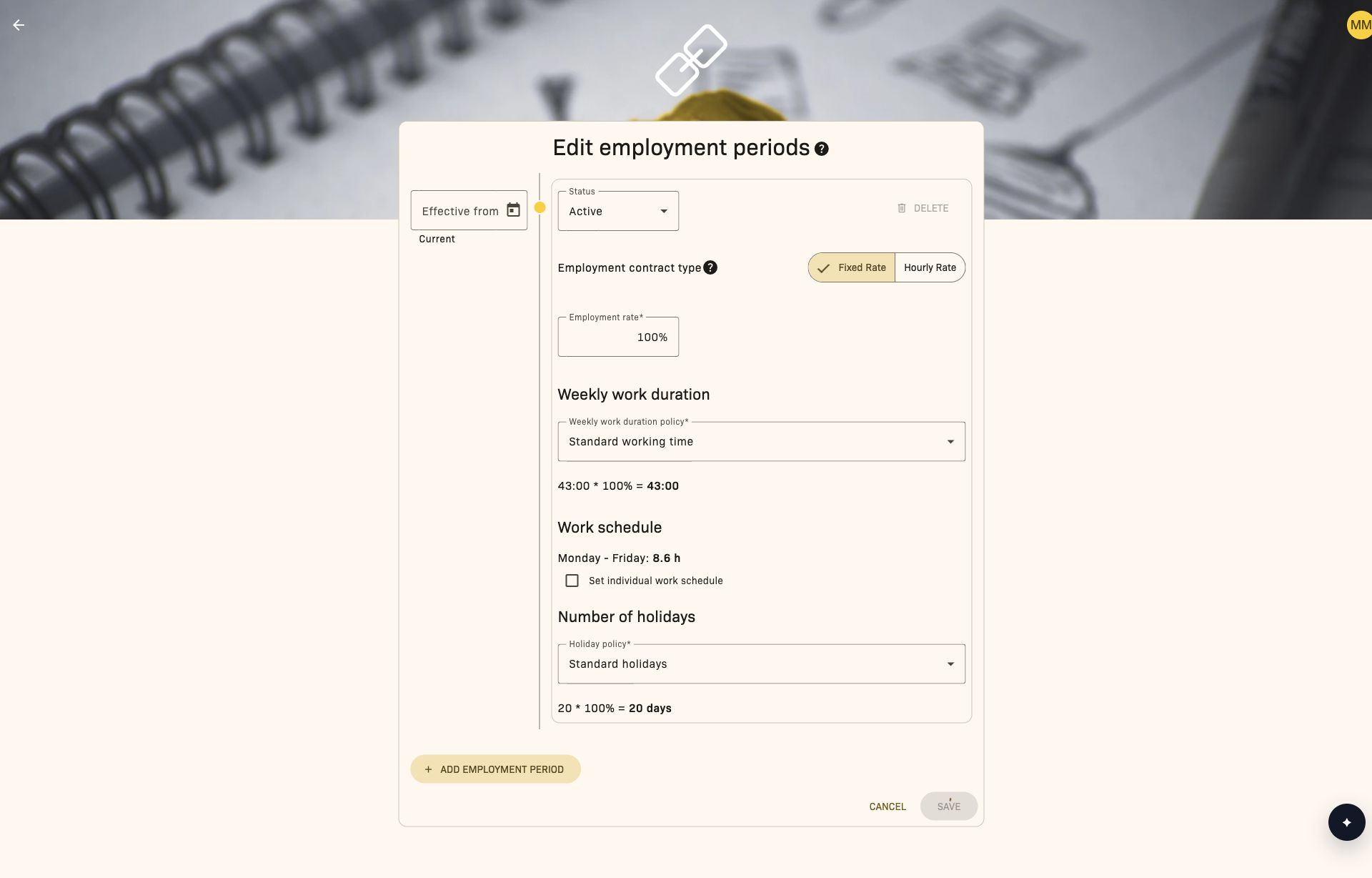
Change employment periods and work schedule
- Open the employee record and select Edit in Employment periods.
- Use Show all to display earlier periods. Add a period with Add employment period if employment changes from a new date.
- Set Effective from and Status. For an active period, select Employment contract type: Fixed Rate or Hourly Rate.
- For fixed employment, check Employment rate, Weekly work duration policy and the holiday policy. If needed, enable Set individual work schedule and distribute hours across weekdays. The total must equal the weekly working time.
- Before saving, review the displayed affected holidays, time entries, expenses and hours reports. Changes to earlier periods can affect existing entries or remove entries outside the new employment period.
- Save the change, then check the affected data and balances.
Status changes represent joining and leaving. At least one active employment period must remain; for the owner, the last employment period must be active.
Settings
This feature offers customizable table settings through the table settings dialog:
- Visible columns: Select which employee columns appear in the table. Employee is mandatory.
- After confirmation, settings are saved for your user account and your employee view updates.
Tips and troubleshooting
- If email validation fails, make sure the address is unique and correctly formatted.
- If Email bounced is displayed, open the row actions and select Request unblock. After successful unblocking, the bounce is removed for the employee's email.
- Withdrawn employees can only be invited again after reactivation.
- Address validation errors occur when only partial information is entered; fill in all fields.
- If a capacity error occurs during creation, use the checkout dialog to confirm an additional license purchase.
- Deletion blocked? Check referenced records — the system lists linked documents or payroll entries that prevent deletion.
Integration notes: Unlink from Azure AD or Unlink from bexio ends external sign-in and terminates existing sessions. If no other login method is permitted, the employee may need to reset their password. Unlinking from bexio does not affect synchronization with bexio Payroll. Employee synchronization errors for bexio or Azure AD typically appear as tooltips; try linking again through the corresponding bulk action.
Company settings
Overview
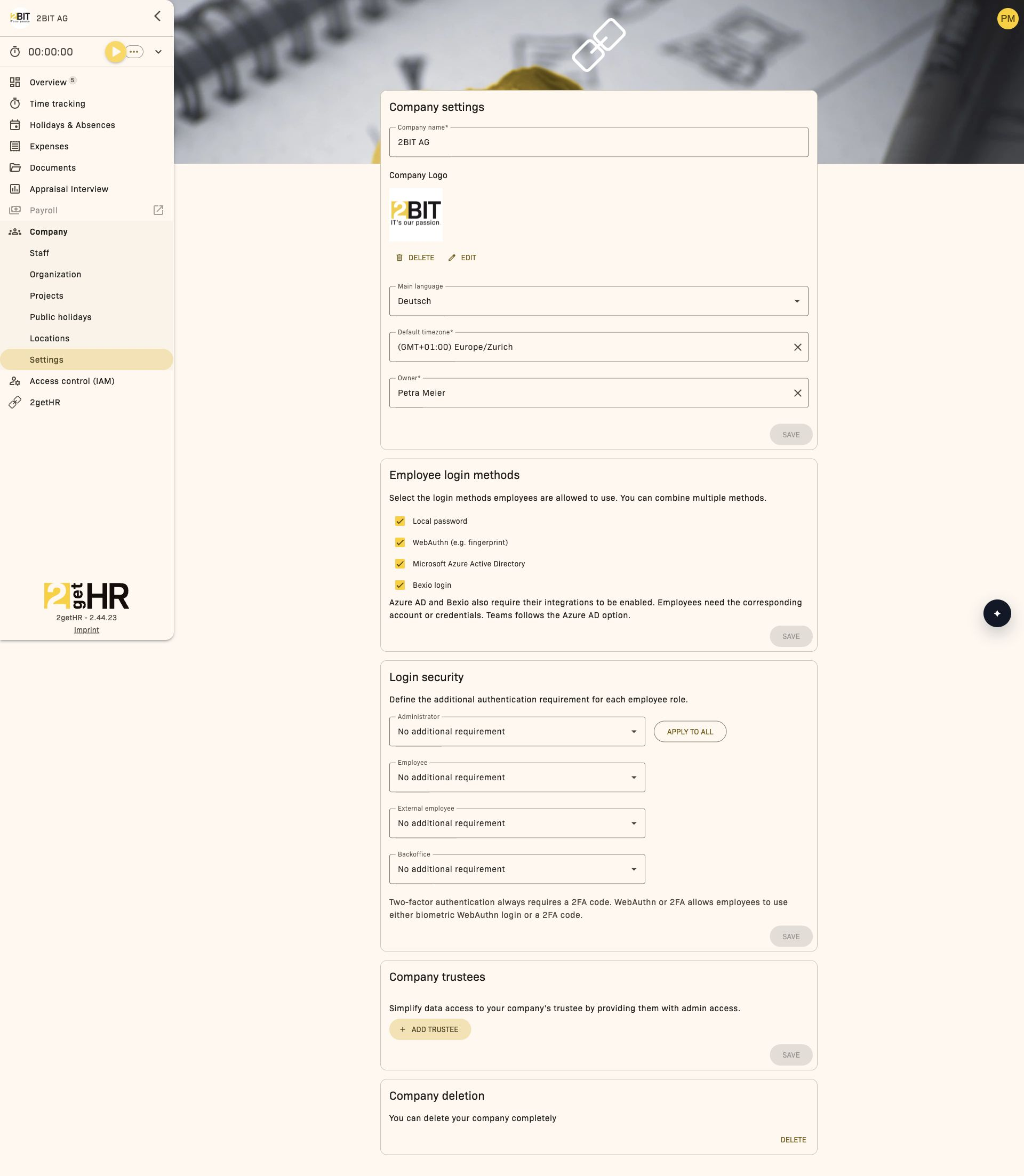
Use Company settings to maintain company-wide defaults and identity information. This area is intended for authorized administrative roles and should be adjusted deliberately, as changes affect many users at once.
What belongs here
This page is intended for structural company configuration: company identity, main language/time zone, owner assignment, employee login methods, login security and trustee assignment. It is not intended for day-to-day employee processes.
Administrators and back office staff can manage the company profile. Employee login methods and Login security are available only to administrators. Deleting the company also requires owner permission.
Common tasks
Update the company profile
- Open Company > Settings.
- Update values such as company name, language and time zone in the company profile.
- Update the company logo if needed.
- Click Save.
- After reloading, check that the values were applied correctly.
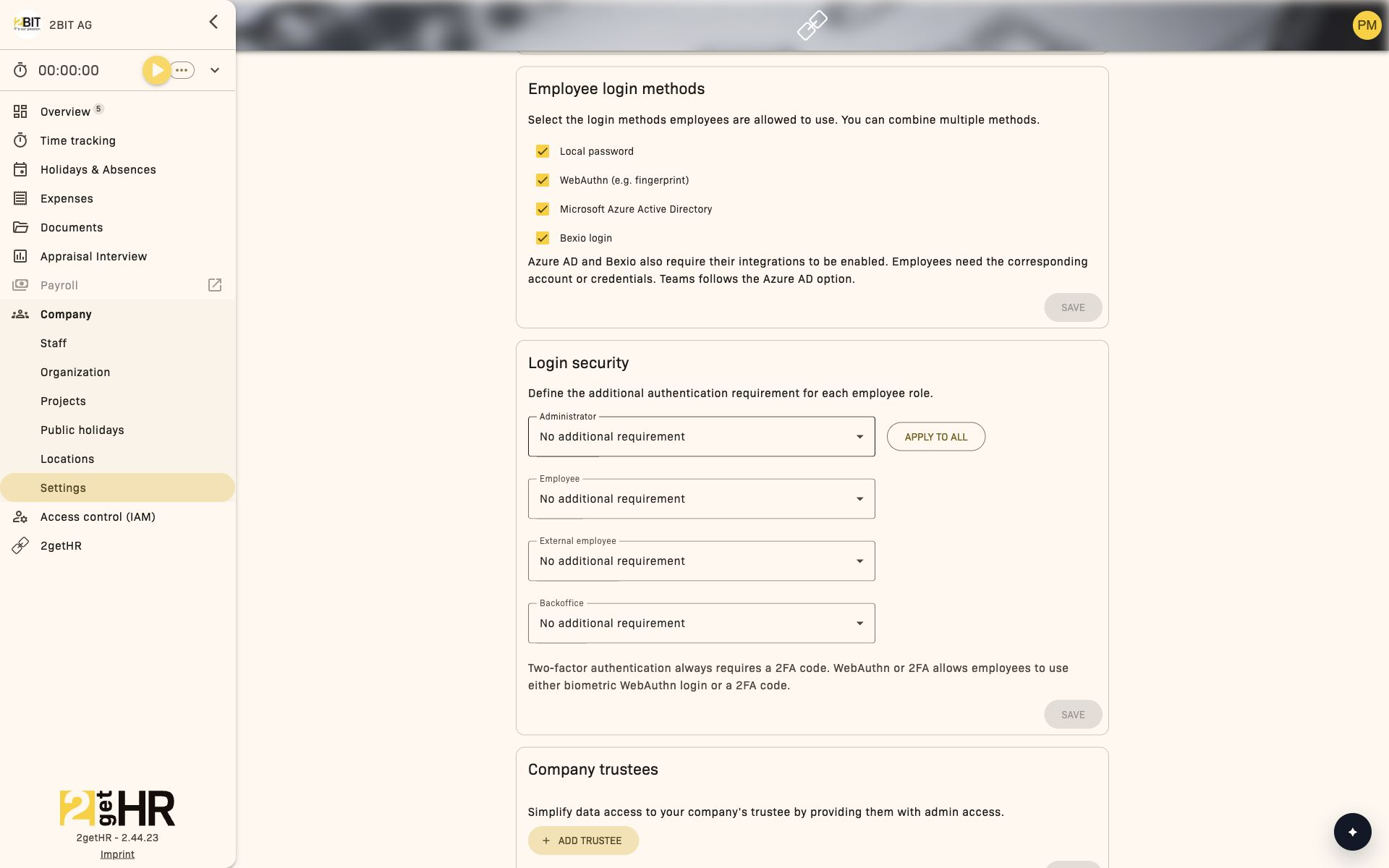
Define employee login methods
- Open Company > Settings.
- Under Employee login methods, select the permitted methods, such as Local password, WebAuthn (e.g. fingerprint), Microsoft Azure Active Directory or Bexio login.
- Click Save.
At least one available login method must be selected. Azure AD and Bexio require the corresponding integration to be enabled. The Azure AD option applies to Teams.
Define login security
- Open Company > Settings.
- Under Login security, set a requirement for each employee role.
- If needed, select Apply requirement to all roles to apply the administrator requirement to all roles.
- Click Save.
Select Require two-factor authentication (2FA) if a 2FA code should always be required. With Require WebAuthn or 2FA, employees can use either WebAuthn or a 2FA code.
Assign or remove a trustee
- Open Company > Settings > Company trustees.
- Add a trustee entry or remove an existing one.
- Click SAVE to apply the changes.
- Check that the final trustee list is correct.
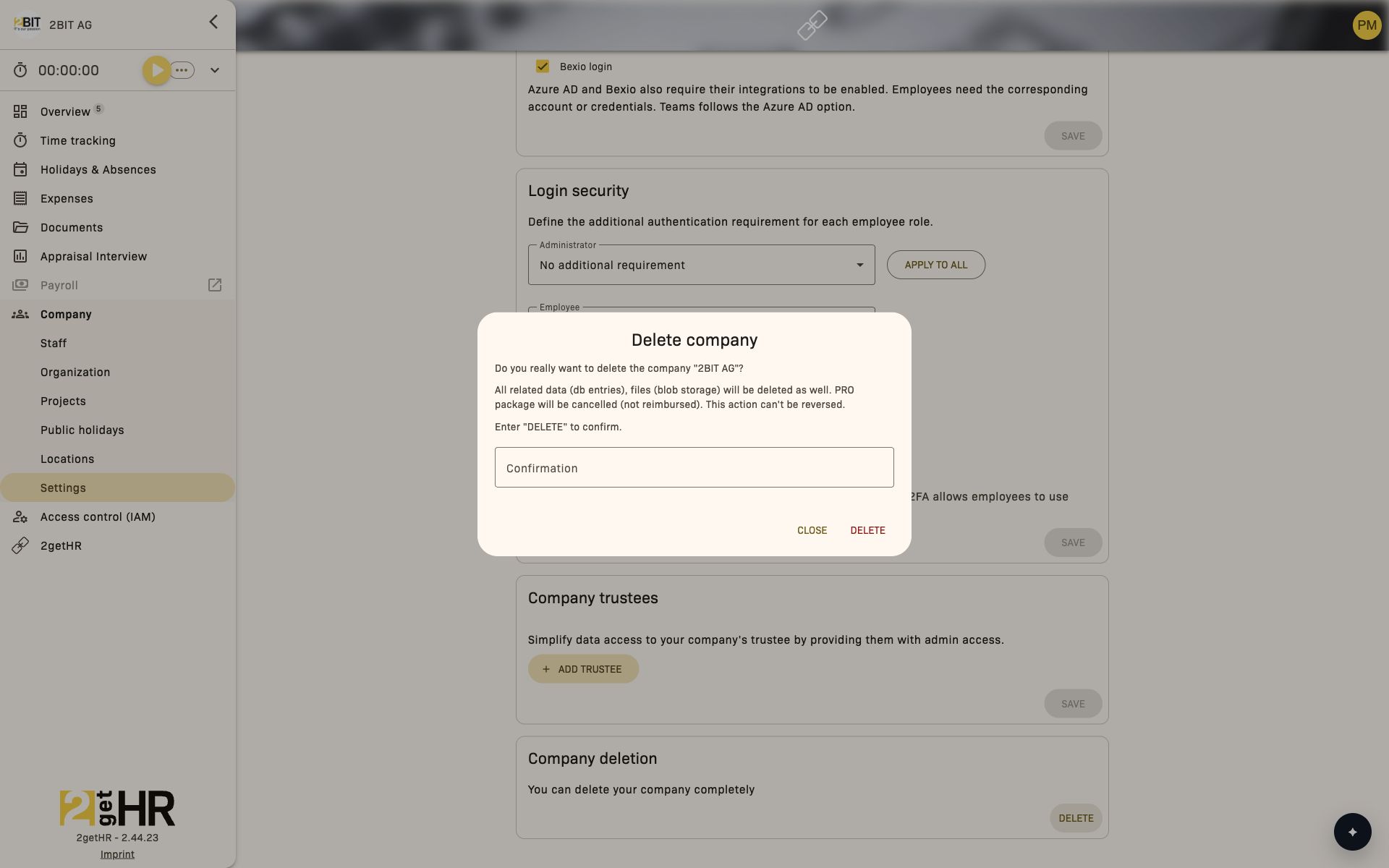
Delete the company
Only a user who has the Administrator role, is listed as the company's Owner and is registered as an employee in that company can use the deletion action. Administrative access through a trustee company alone is not sufficient. A company verified as a trustee company cannot be deleted this way; contact support in that case.
- Open Company > Settings > Company deletion.
- Read the warning carefully.
- In Confirmation, enter exactly DELETE in uppercase.
- Confirm deletion only if you are certain and all internal checks have been completed.
Before saving
Changes to language and time zone can affect reports and the user experience. Changes of owner should be agreed internally to keep responsibilities clear.
Tips and troubleshooting
- If saving is unavailable, check required fields.
- If changing the owner fails, select a valid active employee with appropriate rights.
- If logo changes are not visible, reload the page.
- If login methods cannot be saved, select at least one available method and check that the relevant integration is enabled for Azure AD or Bexio.
- Cannot delete the company: Check your administrator role, owner assignment and employee access in the selected company. For a verified trustee company, the message You cannot delete a trustee company. Please contact support. appears. Merely assigning a trustee does not make a client company a trustee company.
- Use company deletion only for final, irreversible cases.
Organizational units
Overview
Navigation: Company > Organization.
The Organizational units feature provides administrators and back office staff with a visual, functional management tool for defining an organization's hierarchy. In this module, you can create, edit and remove logical subdivisions of the company — each representing a department, branch or team — and assign the appropriate heads, deputies and employees.
This view is accessible only to Admin and Backoffice roles. Open Organization from the main sidebar to reach the management list view.
Management view
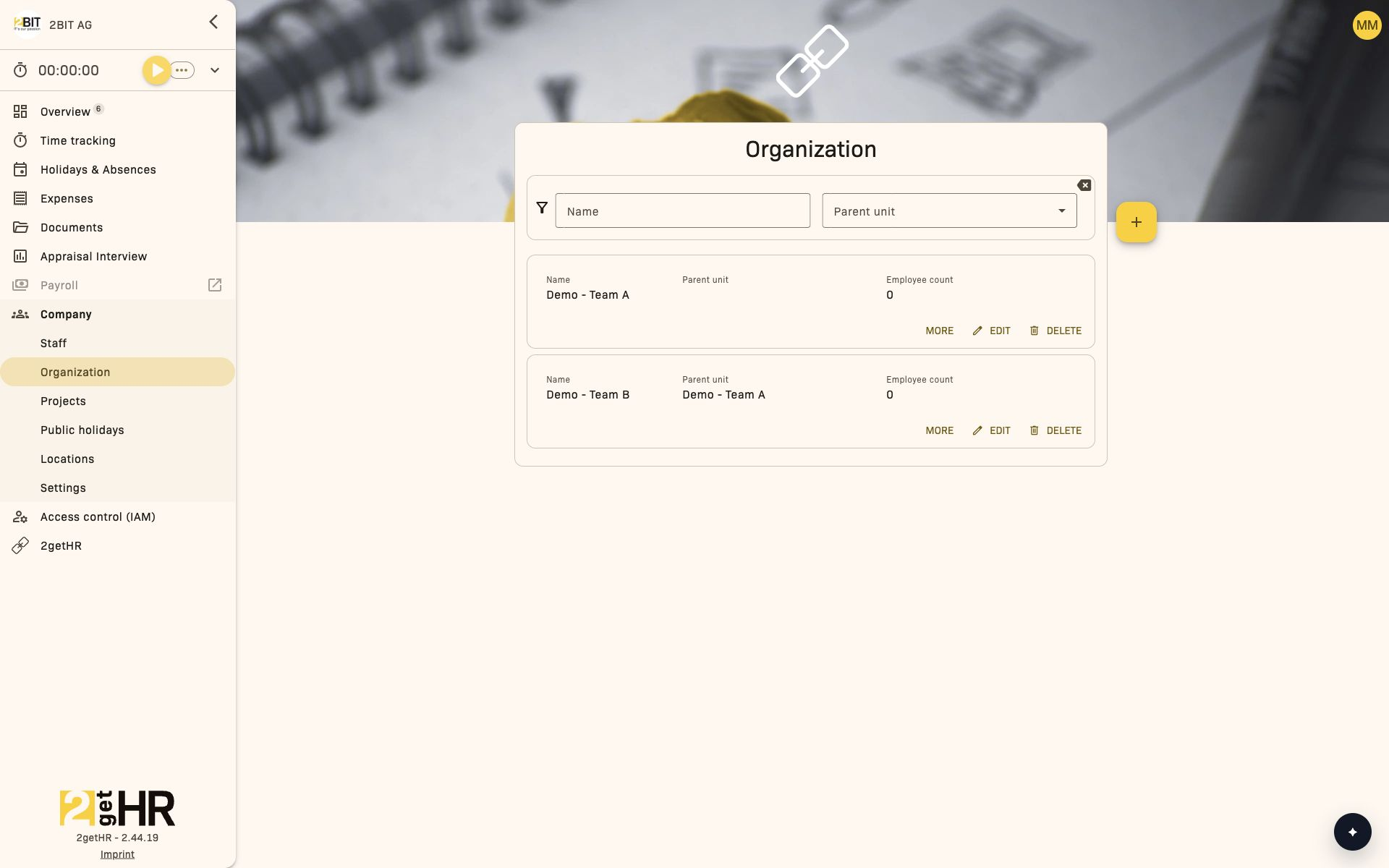
The management view displays filtered organizational units as expandable cards.
Information on each card:
- Name: Display name of the organizational unit.
- Parent unit: Name of the parent unit.
- Employee count: Total number of active employees assigned to this unit.
- Head employee: Name of the responsible head.
- Deputy head employee: Name of the deputy, if any.
Filters:
- Name: Text filter for finding units by title, regardless of capitalization.
- Parent unit: Dropdown filter containing parent units with at least one subordinate unit.
Actions:
- Edit — Opens the organizational unit form with prefilled data for editing.
- Delete — Opens a confirmation dialog before deletion.
- The button for adding an organizational unit opens an empty creation dialog.
Common tasks
Create a new organizational unit
- Select the button for adding an organizational unit at the top right.
- Fill in the required fields in the dialog.
- Click Save.
Edit an existing unit
- Find the unit you want to edit in the list view.
- Click Edit in the actions column.
- Adjust the fields as needed and click Save.
Delete a unit
- Click Delete in the corresponding row of the list view.
- Confirm deletion in the dialog.
Form field reference
- Name: Display name of the organizational unit.
- Head employee: Select the main responsible head from active employees. This field is required.
- Deputy head employee: Optionally select a deputy head from active employees. The same person cannot be selected as both head and deputy.
- Parent unit: Defines the unit above this one in the hierarchy.
- Automatically approve holidays and absences: Checkbox for automatic holiday and absence approval.
- Send holiday appointment to leaders: Notification toggle for the head.
- Send holiday appointment to employees: Notification toggle for employees.
- Add employee association: Dropdown for assigning active employees to this unit.
Settings
- Automatically approve holidays and absences: Toggle. Default: disabled.
- Send holiday appointment to leaders: Notification toggle. Default: enabled.
- Send holiday appointment to employees: Toggle. Default: disabled.
Tips and troubleshooting
- If the error Cyclic organizational units are prohibited appears, make sure the unit is not entered as its own parent or ancestor.
- Only active employees appear in the head/deputy fields and assignment selection; a person can only be assigned once.
- After deletion, the list updates automatically.
- If a unit's holiday approval settings seem ineffective, check for configuration overlap with Self service Settings.
Company locations
Overview
The Company locations feature allows administrators and back office users to manage all location records used throughout 2getHR. Each location represents a physical office, branch or site linked to employees, public holiday templates and other organizational settings. The feature offers full creation, viewing, editing and deletion functionality, along with export and table configuration tools.
Access this feature via Company > Locations in the sidebar. The page is restricted to users with Administrator or Backoffice roles; unauthorized users are automatically redirected to the sign-in screen.
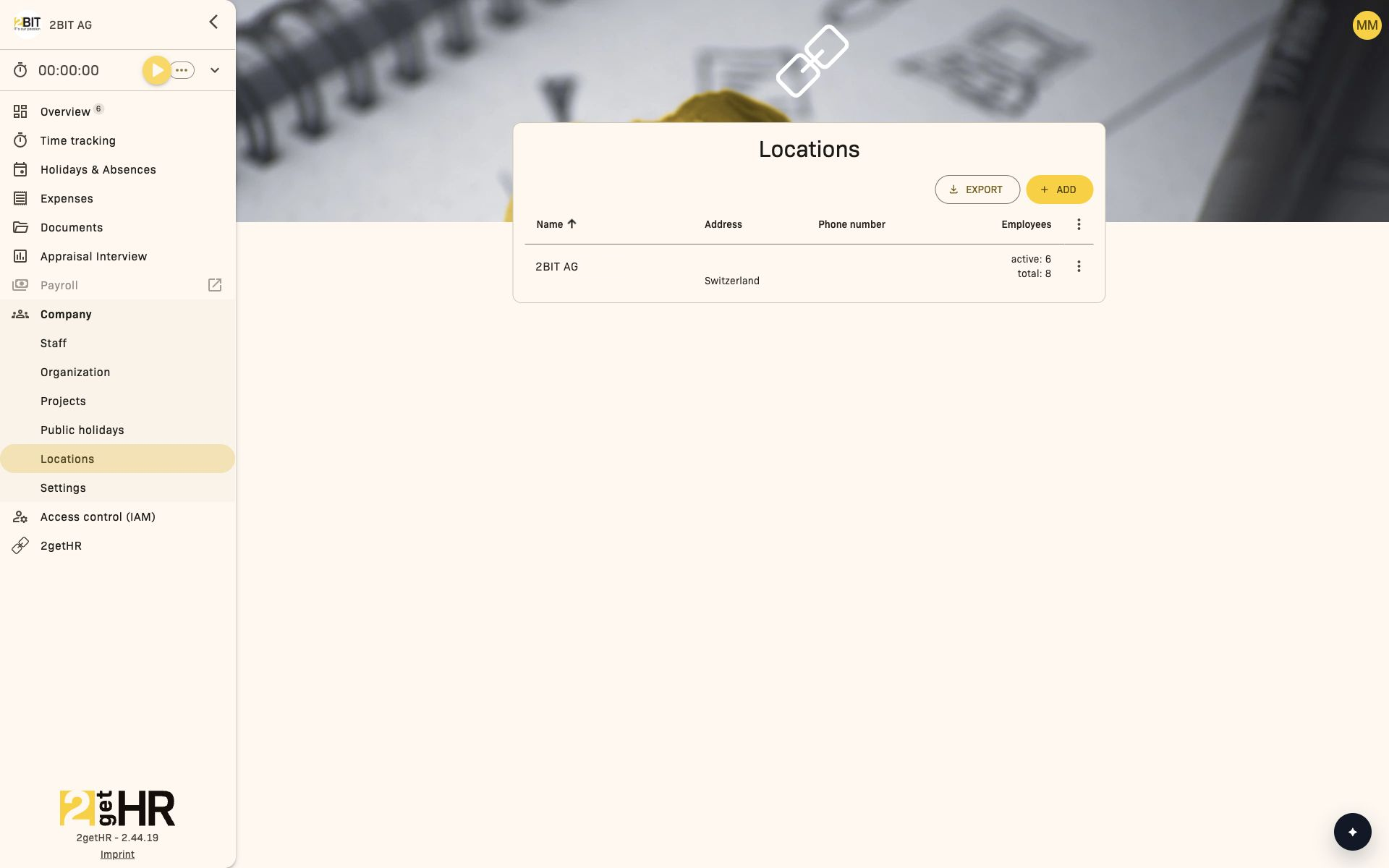
The main view shows the locations table with action buttons for EXPORT, Add and Column options to customize visible columns.
Management view
The management view consists of a single Locations view, which serves as the central workspace for viewing and maintaining company location records.
Locations list
The Locations view displays all location records returned by the system in a configurable table.
Available content and tools:
- Columns: The table contains Name, Phone number, Address and Employees columns. Addresses appear across multiple lines; employee counts show Active and total. The actual columns depend on the current table settings configuration.
- Filters: No direct filters are implemented by default, but the table respects column visibility and server-side configuration.
- Action toolbar: Includes EXPORT, Add, Edit, Delete and Column options.
Available actions:
- EXPORT: Opens export configuration. Select the columns to export, set their order and choose PDF or Excel.
- Add: Opens the Add dialog for entering new location details.
- Edit: Opens the editing dialog for the selected row.
- Delete: Opens a confirmation dialog before removing the location. This action is unavailable while employees are assigned to the location.
- Column options: Configures the displayed columns.
Common tasks
Add a new location
To add a new location:
- In the locations list, click Add to open the location creation dialog.
- Fill in the required and optional fields: Name, Phone number, Street, House No., Zip code, City and Country. When adding, you can optionally select a public holiday template under Template.
- Click Save to create the location. The form validates required fields — Name and Country, in particular, are mandatory.
- On success, the dialog closes and the new location appears in the list. A success notification confirms creation.
Edit an existing location
- Select a location row and click Edit.
- Change any fields. Template is hidden in edit mode and only appears when adding.
- Click Save. The location is updated.
- A confirmation message appears and the dialog closes automatically.
Delete a location
- Make sure no employees are assigned to the location.
- Click Delete in the required location row.
- Confirm deletion in the confirmation dialog.
- The entry is removed from the table and a success message appears.
Settings
Settings for this feature focus on table configuration:
- Locations table columns: Controls which columns are visible and their order in the locations list. Name is always visible; Address, Phone number and Employees can be adjusted. This setting affects the on-screen display. Columns and their order are selected separately for each export.
Tips and troubleshooting
- Cannot save a location? Make sure the country is selected and the location name is provided. Both are mandatory.
- Template field missing when editing? This is expected — templates are only assigned when adding a location.
- Columns missing from the exported file? Open EXPORT and check the columns selected for that export.
- Delete option missing? A location with assigned employees cannot be deleted.
- Redirected to the sign-in page? This happens when unauthorized users access the feature.
Related features
The Company locations feature interacts with several other modules:
- Public holiday template catalogs: Allow a location to be linked to a public holiday template during creation.
- Employee: Locations are used in employee management; the number of assigned employees appears in the locations list.