Objectives and Appraisals
Active objectives
Overview
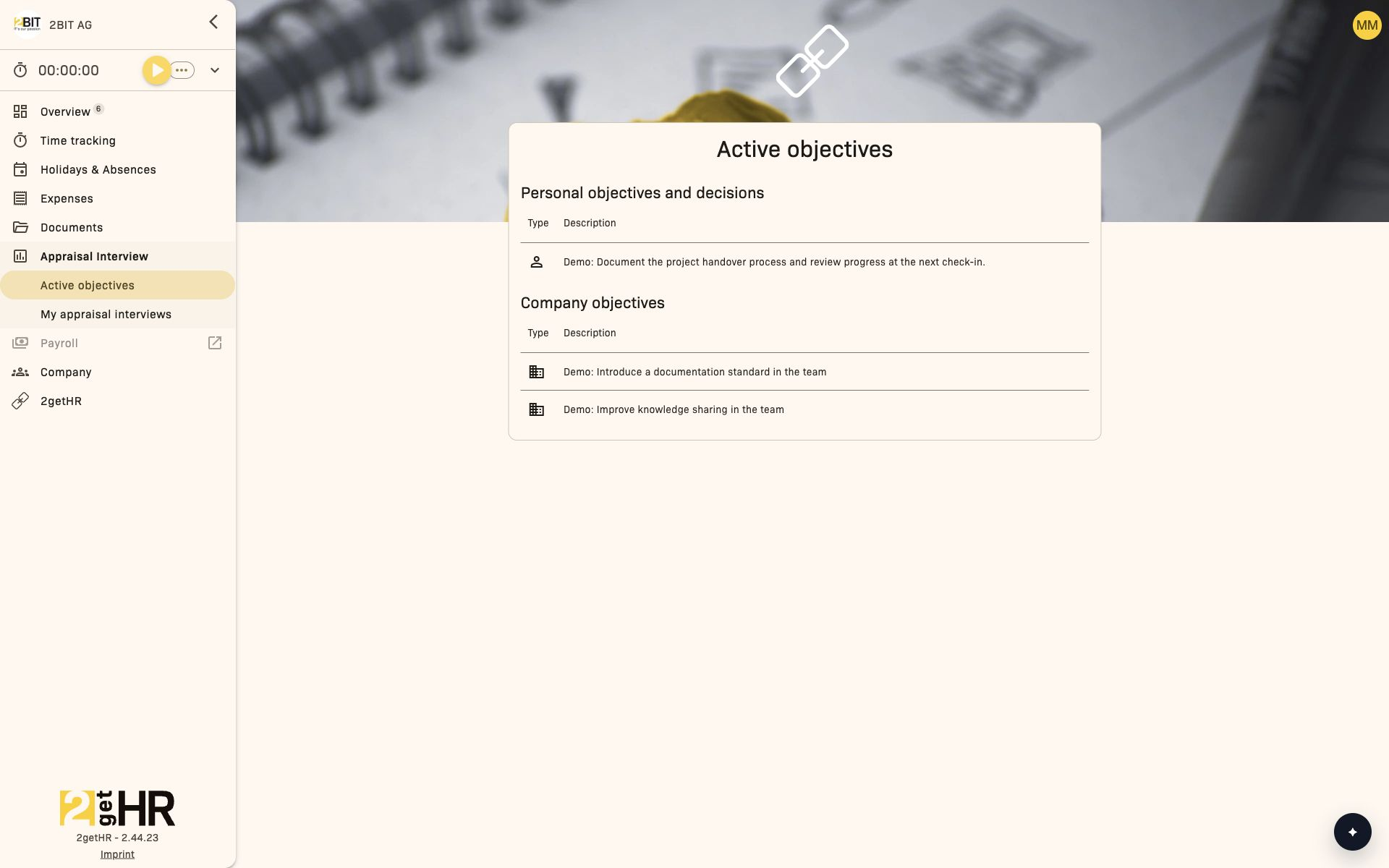
Active objectives in 2getHR shows your personal objectives, decisions and company objectives from your most recent completed or signed appraisal interview. It provides an overview; objectives cannot be edited on this page.
Open the feature in the sidebar under Appraisal Interview > Active objectives. The page automatically loads objectives from your most recent qualifying appraisal interview.
Views
Employee view — Active objectives page
The page shows the content of your most recent completed or signed appraisal interview. A progress bar appears while the data loads.
- Personal objectives and decisions: Shows personal objectives and decisions in Type and Description columns.
- Company objectives: Shows company objectives in Type and Description columns.
- Type: Uses an icon to identify personal and company objectives.
- No manual editing: You cannot create or change objectives directly here. Changes are made in the related appraisal interview.
If neither personal nor company objectives are available, the page displays an empty list.
Access: Regular employees with MBO module access.
When Access control (IAM) is enabled, effective permissions determine whether MBO is available to you. The page still shows only your own objectives and provides no editing.
Common tasks
View active objectives
- Open Appraisal Interview > Active objectives in the sidebar.
- Wait for the objectives to load.
- Review Personal objectives and decisions and Company objectives.
Settings
This feature has no settings tab or editing options of its own.
Tips and troubleshooting
- No objectives visible: Make sure a completed or signed appraisal interview with objectives exists for you. Without a qualifying interview, the page shows an empty list.
- Objectives cannot be changed: The page is for display only. Changes must be made in the related interview while it is still editable. Signed interviews are read-only.
- Area without entries: If objectives exist in only one category, the other area may still appear without entries.
Objective catalog
Overview
The Objective catalog feature centralizes the management of yearly objective templates used throughout the organization. Administrators and organizational unit managers use it to define a structured set of objectives that later feeds into performance appraisal processes. Each catalog belongs to a specific year and contains objective items that can be limited to particular organizational units. These catalogs form the basis of Objective assessments and provide consistent, transparent alignment of objectives across teams.
You need access to the MBO module for this area. When Access control (IAM) is enabled, effective permissions determine whether the module is available to you. The role and record restrictions of each action still apply.
To access this feature, navigate in the sidebar to Appraisal Interview > Settings > Objective catalogs. You can view existing catalog years, create new ones and manage individual objective items within each catalog.
Management views
Catalog years tab
This main view lists all available yearly objective catalogs. Each entry shows the catalog year, the number of template items it contains and the available management actions.
Displayed columns:
- Year: The year assigned to the objective catalog.
- Number of items: The number of objective template items currently defined.
- Actions: Icons for opening catalog items or related assessments, or deleting a catalog.
Available actions:
- + opens New objective catalog to create a new yearly catalog.
- Delete: Removes an entire catalog after confirmation (administrators only).
- Edit items: Opens the list of objective items for the selected year.
- Assess: Opens the overview of objective assessments linked to this catalog year.
Role access:
- Administrators: Full access to create, edit or delete catalogs.
- Organizational unit managers: Can open and view catalog content within their scope.
Objectives page
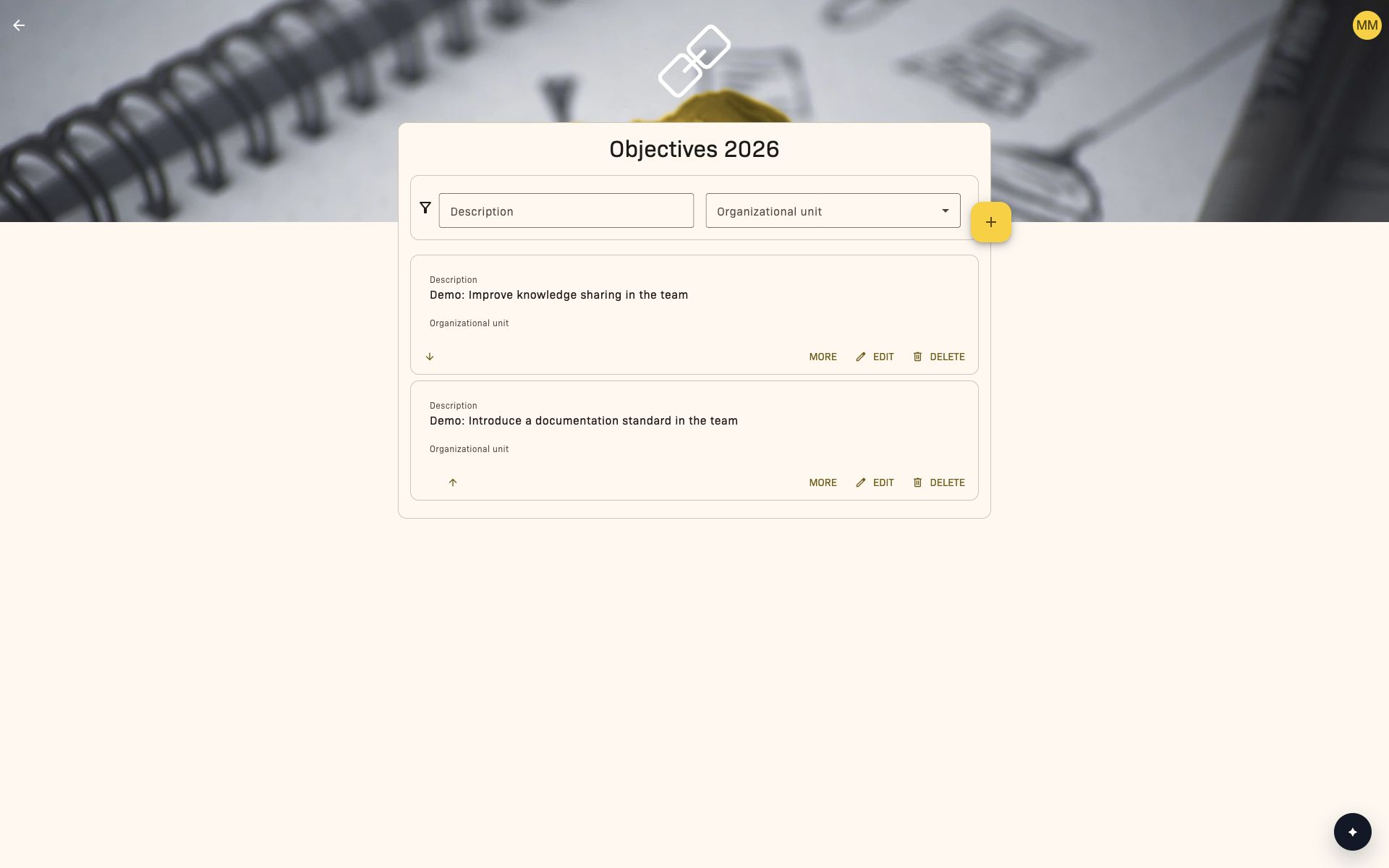
After selecting a catalog year, open the objectives page for that year. This view shows all objective templates defined for the catalog. Items can be filtered, edited, reordered or removed.
Displayed information:
- Description: The main objective template text in your language; if that translation is missing, the company's main language is used.
- Organizational unit: Specifies the unit to which the objective applies.
- Including sub units: Indicates whether subordinate units are included. This information appears only if an organizational unit is assigned.
- Individually assesed: Indicates whether the objective is assessed at individual employee level.
- Optional objective: Marks the objective as optional, rather than mandatory for assessments.
- Target achievement: Shows the performance assessment value as a percentage.
Available filters:
- Description: Free-text search for objectives using parts of their description.
- Organizational unit: Limits the list to objectives of a selected organizational unit. Objectives of a parent unit also appear if Including sub units is enabled.
Item actions:
- + opens New objective item.
- Edit: Opens Edit objective item to change an existing item's details.
- Delete: Asks for confirmation before removing the objective from this catalog.
- Move up / down: Adjusts the display order. The first item cannot be moved up and the last cannot be moved down. If saving the order fails, the application restores the previous order.
Access permissions:
- Admins: Full control over all objective items, regardless of unit.
- Organizational unit managers: Can edit, delete and reorder objectives if they manage the assigned organizational unit or a parent unit.
- Other users: Can open objective items but cannot edit, delete or reorder items they do not have access to.
Common tasks
Create a new catalog
- In Objective catalogs, click +.
-
Complete the following fields in New objective catalog:
-
Year: The year to which the objective catalog will apply.
-
Copy company objective items from last year: Enable this option to copy the previous year's objectives.
-
Click Add to create the catalog. The list updates automatically.
Add an objective item
- Open an existing catalog year using Edit items.
- Click +.
-
Complete the following fields in New objective item:
-
Description: Required field for the objective text.
- Organizational unit: Limits the objective to a unit. Only admins can leave this selection empty to create a company-wide objective.
- Including sub units: Appears after selecting an organizational unit and includes its subordinate units.
- Individually assesed: Specifies that the objective is assessed per employee.
-
Optional objective: Marks the objective as non-mandatory.
-
Save the changes to add the item to the list.
Filter objective items
- Use the search field under Description to filter items by keywords.
- Select an Organizational unit from the dropdown to see relevant objectives for that unit. An empty selection shows company-wide objectives.
- Filters update the results automatically as you type or change the selection.
Tips and troubleshooting
- Error: "Year already exists" - A catalog already exists for this year. Choose a unique year.
- Objective not visible: Check that your account is assigned to the relevant organizational unit.
- Objective cannot be moved: Make sure you have editing permissions and that concurrent edits are not restricting the order.
- Objective missing from an assessment: Check that the desired catalog is active for the current assessment cycle.
Useful tip: When setting up a new year, enable Copy company objective items from last year to save time and keep recurring objectives consistent.
Objective assessments
Overview
Objective assessments lets management users and users with MBO access review and update achievement percentages for objectives in a particular catalog year. It is part of the broader Management by Objectives (MBO) module in 2getHR. Each catalog year defines a structured set of objectives, and assessments record how fully each objective has been achieved.
You need access to the MBO module for this area. When Access control (IAM) is enabled, effective permissions determine whether the module is available to you. The role and record restrictions of each action still apply.
Open objective assessments through Appraisal Interview > Settings > Objective catalogs > Assess for the required catalog year. The page title includes the selected year, for example Objectives 2026. The page displays the objective items relevant to that year. This module provides inline editing, filters and safeguards when saving so that changes are not lost accidentally.
The page is mainly intended for users with MBO access, such as department heads, HR managers and assessors who track achievement across organizational units.
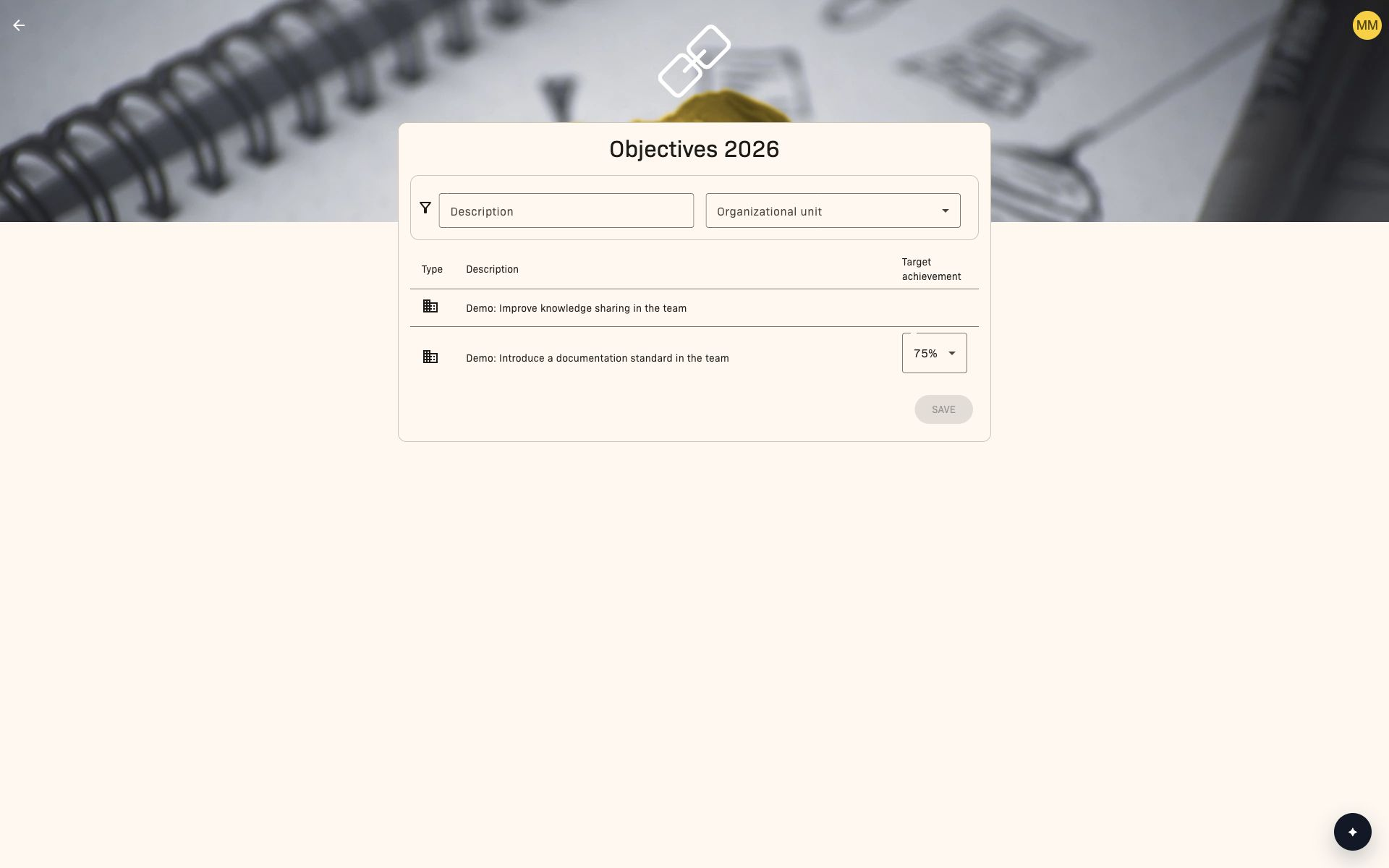
The main page view shows the assessment table, filter area and Save button at the top right.
Management view
The page whose title includes the selected catalog year shows all objectives defined for that year and allows authorized users to edit achievement percentages directly in the table. Use Back to return to the Objective catalogs overview.
Assessments
The page provides a clear table layout with these columns:
- Type: An icon shows whether the objective applies to the whole company or an organizational unit.
- Description: Detailed text describing the objective.
- Target achievement: An editable percentage dropdown indicating the progress achieved.
Filters above the table narrow down the visible objectives:
- Description: Enter any text to filter objectives by description.
- Organizational unit: Select a unit to show its objectives. Options include ALL, NONE and specific organizational units. Objectives from parent units are included when they apply to subordinate units.
Available page actions:
- Change target achievement: Allows inline changes to percentages directly in the table, provided you have permission for the objective and it is not assessed individually.
- Save: Submits only changed rows and saves the updates in the system.
The page shows columns for type, description and target achievement. Use the filters to narrow down the results and Save to submit updates.
Common tasks
Filter objectives
To filter objective items:
- Through Appraisal Interview > Settings > Objective catalogs, open the objectives page for the required catalog year.
- Use Description to enter part of the objective text.
- Optionally select an Organizational unit from the dropdown.
- Confirm the change when filters are set. If unsaved edits exist, the application displays a discard dialog before applying new filters.
Filter form fields:
- Description: Text filter for objective descriptions.
- Organizational unit: Dropdown for selecting specific units or displaying all of them.
Edit target achievement inline
To update a target achievement value:
- Click the percentage in the Target achievement column.
- Choose a new percentage from the dropdown.
- Edit further rows if needed.
- Then click Save below the table. The button is active only when you have changed a value.
Field description:
- Target achievement: Dropdown containing percentages, such as 0%, 25%, 50%, 75% and 100%. It can be left empty for optional objectives.
Save changes safely
Clicking Save sends only rows whose values differ from the original record to the server. If you leave the page or change filters while unsaved edits exist, the application displays You have unsaved changes. Are you sure you want to discard them?. This safeguard prevents progress values from being lost.
Settings
There are currently no specific pages for objective assessment settings within the general settings. Behavior such as filter persistence or catalog linking is managed automatically by the MBO module and catalog configuration.
Tips and troubleshooting
- Discard warning: If the system asks you to discard unsaved changes, make sure you have clicked Save before changing filters or navigating away.
- Missing objectives: Check that you have selected the correct catalog year; objectives are tied to the catalog context.
- Read-only objective values: Individually assessed objectives and objectives outside the organizational units you manage cannot be edited. Administrators can edit all objectives.
- Performance note: Only changed rows are sent when saving, so editing multiple objectives does not affect other entries.
- Reset filters: Clearing the filters restores the full objective list. If no results appear, check that the selected organizational unit includes your department.
Related features
- Objective catalog: Manages the yearly objective definitions on which assessments are based. Objective assessments rely on these catalogs to identify objectives.
- Organizational units: Which objectives are visible and editable depends on the organizational unit structure. Filters use unit assignments to narrow down results.
Employee assessment
Overview
Employee assessment in 2getHR allows administrators to define and structure assessment criteria for appraisal interviews. It forms the basis of the assessment process, ensuring consistency and clarity across different interview types. The module includes both assessment sections, meaning topics or categories, and Questions, meaning specific questions or assessment measures.
You need access to the MBO module for this area. When Access control (IAM) is enabled, effective permissions determine whether the module is available to you. The role and record restrictions of each action still apply.
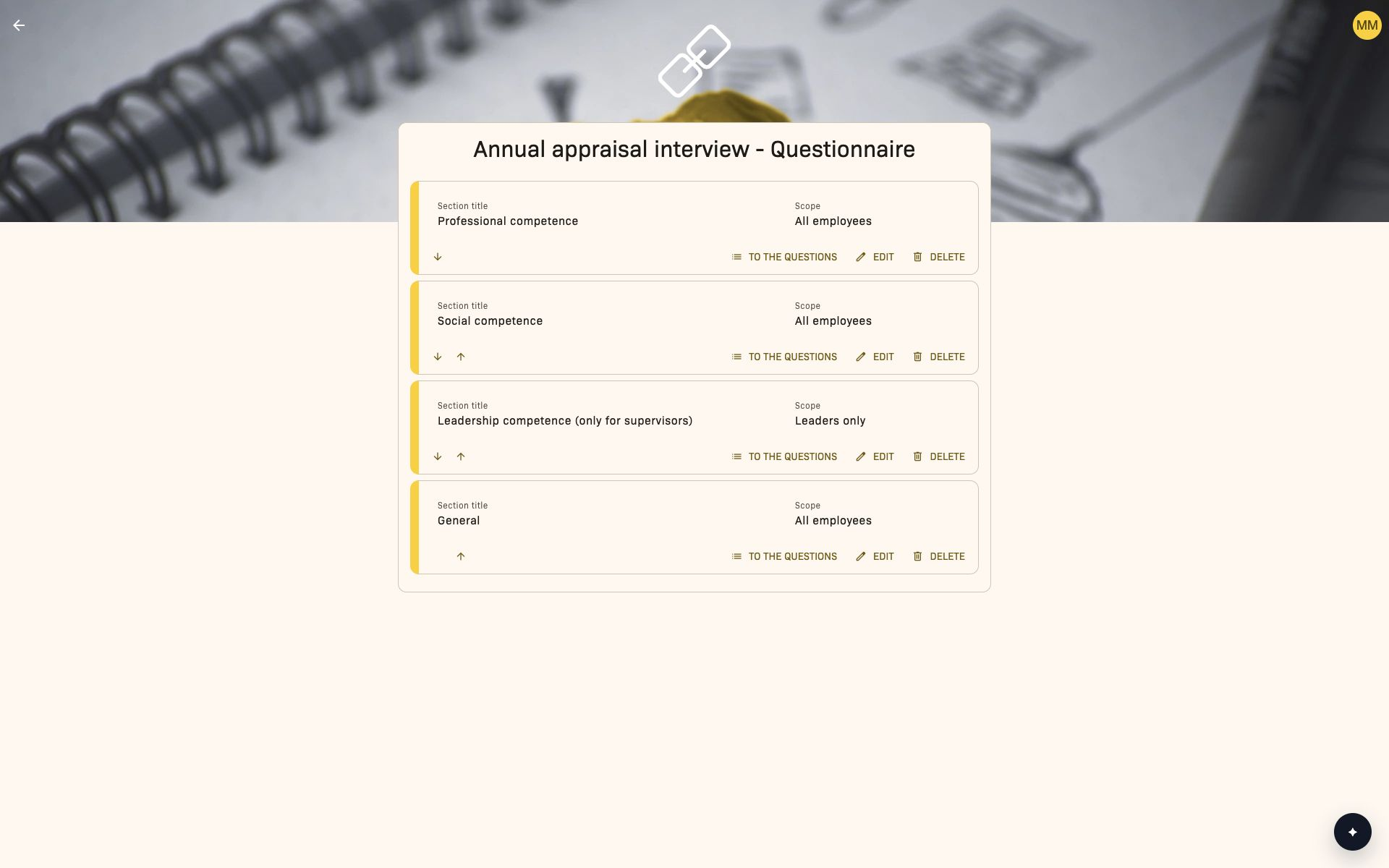
Navigation: Open Appraisal Interview > Settings and choose TO THE QUESTIONNAIRE for the relevant interview type. You manage sections and their questions there.
Configuration under Templates > Employee assessment is available to administrators with MBO access. Organizational unit heads' access to Objective catalogs does not authorize them to configure assessment sections and questions.
Management views
Sections page (Employee assessment)
This view lists all existing assessment sections for a selected interview type. Each section groups related questions or items into an assessment topic, such as skills, behavior or objectives.
Displayed columns:
- Section title: The name shown in interviews.
- Leaders only: Indicates whether the section is visible only to managers.
Available actions:
- +: Opens a dialog for creating a new section.
- Edit: Adjusts the title or visibility.
- Delete: Removes the section completely.
- Change the order of sections.
Adding and editing are disabled once the selected interview type is marked as in use, preserving data consistency for interviews already conducted.
Questions page
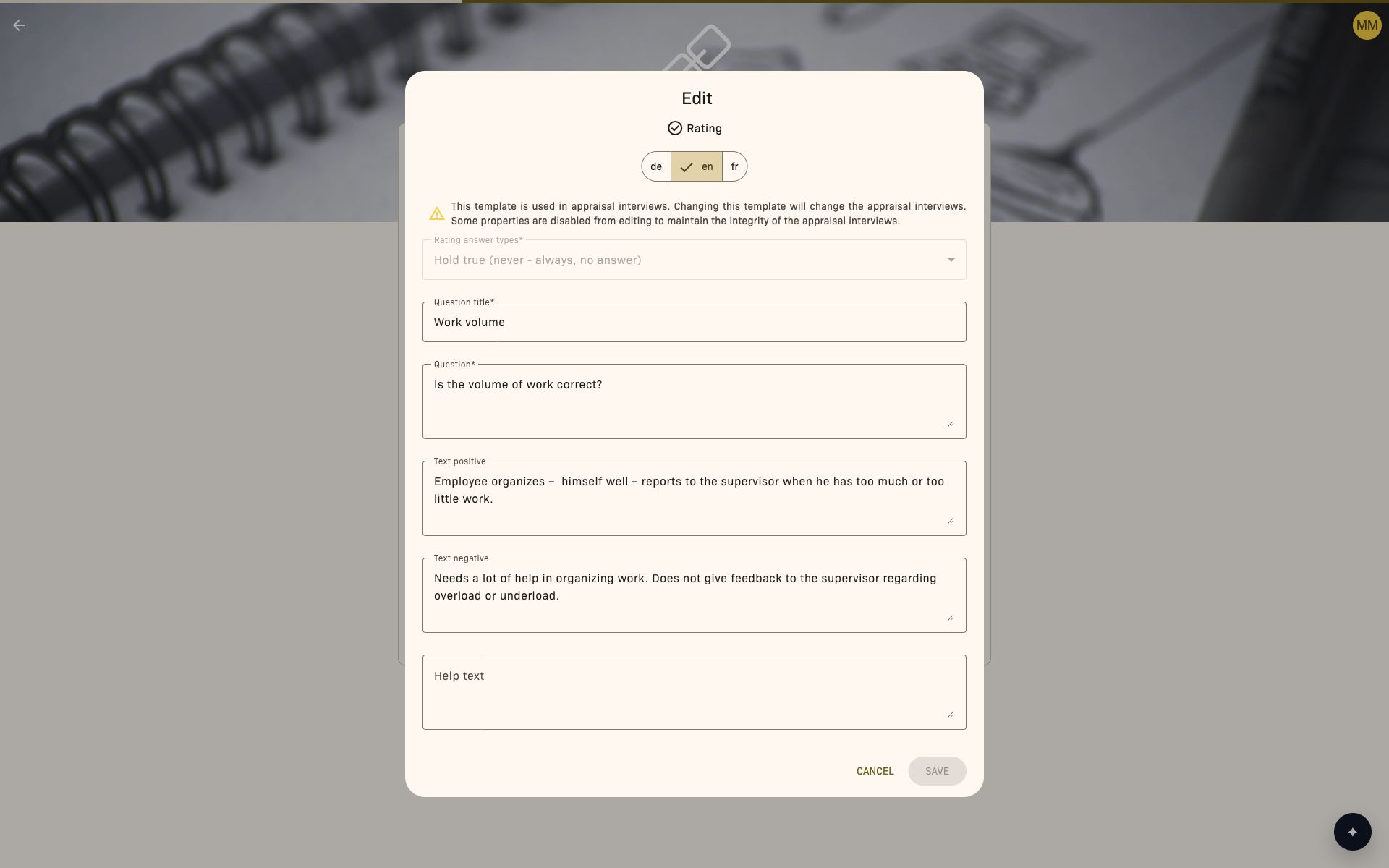
Each section has its own Questions page, where individual questions and assessment items are defined. Questions determine which data is collected during an assessment. Search finds questions by title and by positive or negative text.
- Type: Rating, Freetext or Personal objectives.
- Scope: Defines whether the question is for All employees or Leaders only.
- Question title: Display name of the question or rating.
- Question, or Description for Personal objectives: The full wording that employees and interviewers respond to.
- Rating answer type: The answer type for Rating questions.
- Is answered by: Specifies who answers the question during preparation.
-
Is optional: Indicates whether an answer is mandatory.
-
Rating, Freetext, Personal objectives: Create a question of the required type using the add button.
- Edit: Opens a window with configurable fields.
- Move: Moves a question to another section of the same interview type.
- Reorder or Delete: Available for arranging and maintaining questions.
Text positive and Text negative are available for rating questions. Help text and Is answered by are not available for Personal objectives; during preparation, these questions are always answered only by interviewers.
If the associated interview type is already in use, questions cannot be added, moved or deleted. Rating answer type, Is optional, Leaders only and Is answered by are read-only; visible text fields remain editable. For interviews that are already signed, Edit and reordering are also unavailable.
Common tasks
Create a new assessment section
- On the questionnaire page, click +.
- Complete the required details in the form.
- Confirm with Save. The list updates and shows the new section.
Add a new question to a section
- Open a section and choose Rating, Freetext or Personal objectives using the add button.
- Fill in Question title and Question; for Personal objectives, the second field is Description.
- For Rating, select a Rating answer type and set other available fields if needed.
- Confirm with Save so the question appears in the section list.
Edit an existing question
- Select Edit for an existing question.
- Choose the language and adjust the available text fields.
- Check the notice if the question is already used in appraisal interviews. In this case, fields including Rating answer types are read-only.
- Click Save after making a change. Without a change, the button remains disabled.
Move a question to another section
- Select Move for the relevant question.
- Choose another section of the same interview type.
- Confirm your selection. If there is no other section, the dialog displays No other sections exist.
Tips and troubleshooting
- Cannot add a question? Make sure the interview type is not yet marked as in use. New questions can be added only before its first use.
- Rating answer type missing? Check that a valid interview answer type is defined before creating a rating question.
- Visibility unclear? Leaders only hides the question from employees. Is answered by determines who answers it during preparation.
- Form validation error: Question title and Question, or Description, must be filled in. Rating also requires a Rating answer type.
- Cannot move or delete a question? These actions become unavailable as soon as the interview type is in use. Once interviews are signed, text editing and reordering are also unavailable.
Appraisal interviews
Overview
The Appraisal Interview feature supports structured performance and development discussions between employees and their supervisors or interviewers. Configurable templates, rating scales and process steps provide a consistent, traceable workflow throughout the company. Managers and HR administrators can prepare, conduct and complete interviews; employees can view, prepare and sign their own interviews. Access depends on roles such as Administrator, Head employee and Employee. In the main menu, select Appraisal Interview > My appraisal interviews, Management or Settings, depending on your task and permissions.
This area requires access to the MBO module. If access control (IAM) is enabled, your effective permissions determine whether the module is available to you. The role and record restrictions for each action still apply.
Views
Employee view (My appraisal interviews)
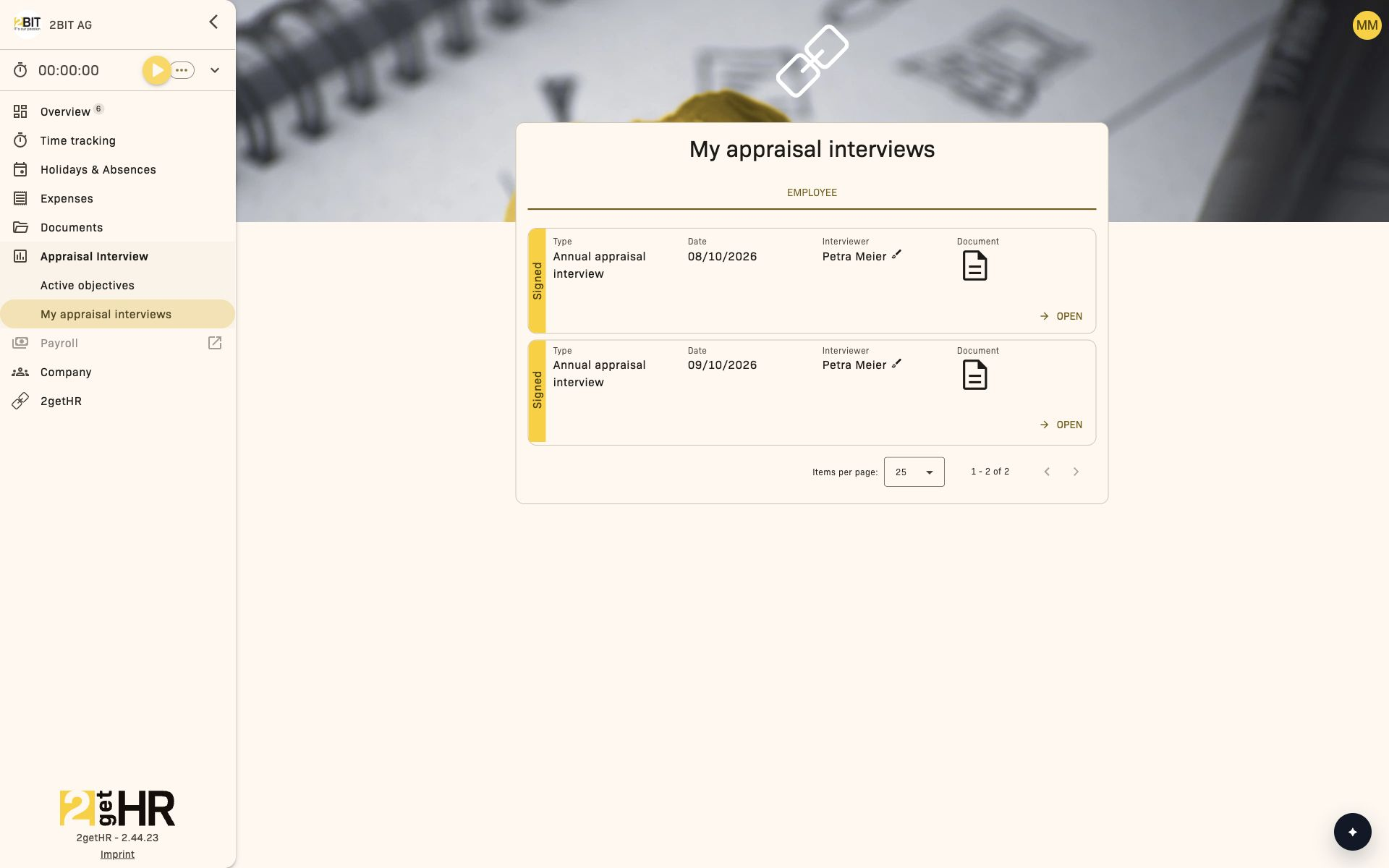
The personal view is intended for employees registered as employees in the selected company who have access to MBO. Administrative access alone, for example through a trustee company, is not sufficient. The menu category is hidden for External employee users. The interviews and editing steps you see also depend on your assignment and the interview status. The view has two tabs:
- Employee: Shows all interviews in which you are the employee being assessed. Each entry shows the year, type, interviewer and progress. Outstanding items are highlighted.
- Interviewer: Shows interviews in which you act as an interviewer or manager for team members. This is useful for managing several interviews within one cycle.
Entries open the interview detail page. Filters by status, year or type are available in the management view.
Management view (company appraisal interviews)
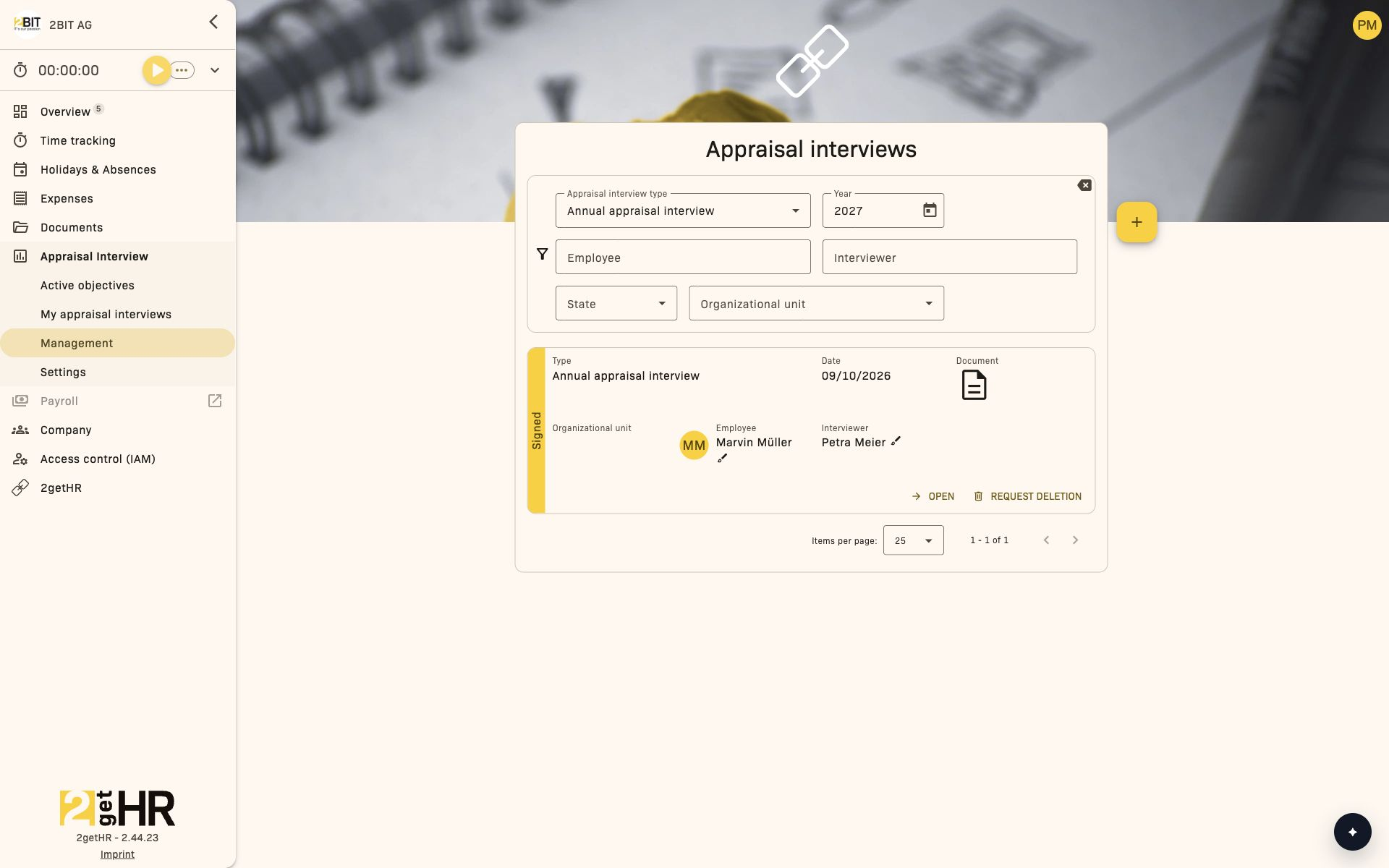
For users with the Administrator role and the responsible Head employee and Deputy head employee. Administrators see the company's interviews; managers see interviews within their area of responsibility. Only administrators can create new interviews, individually or for all employees.
- Single interview: Opens a form for an interview for one employee.
- All employees: Creates interviews for all eligible employees based on the selected template.
- Filters: Narrow the list by organizational unit, interviewer, year or interview type.
Settings view (Appraisal interviews settings)
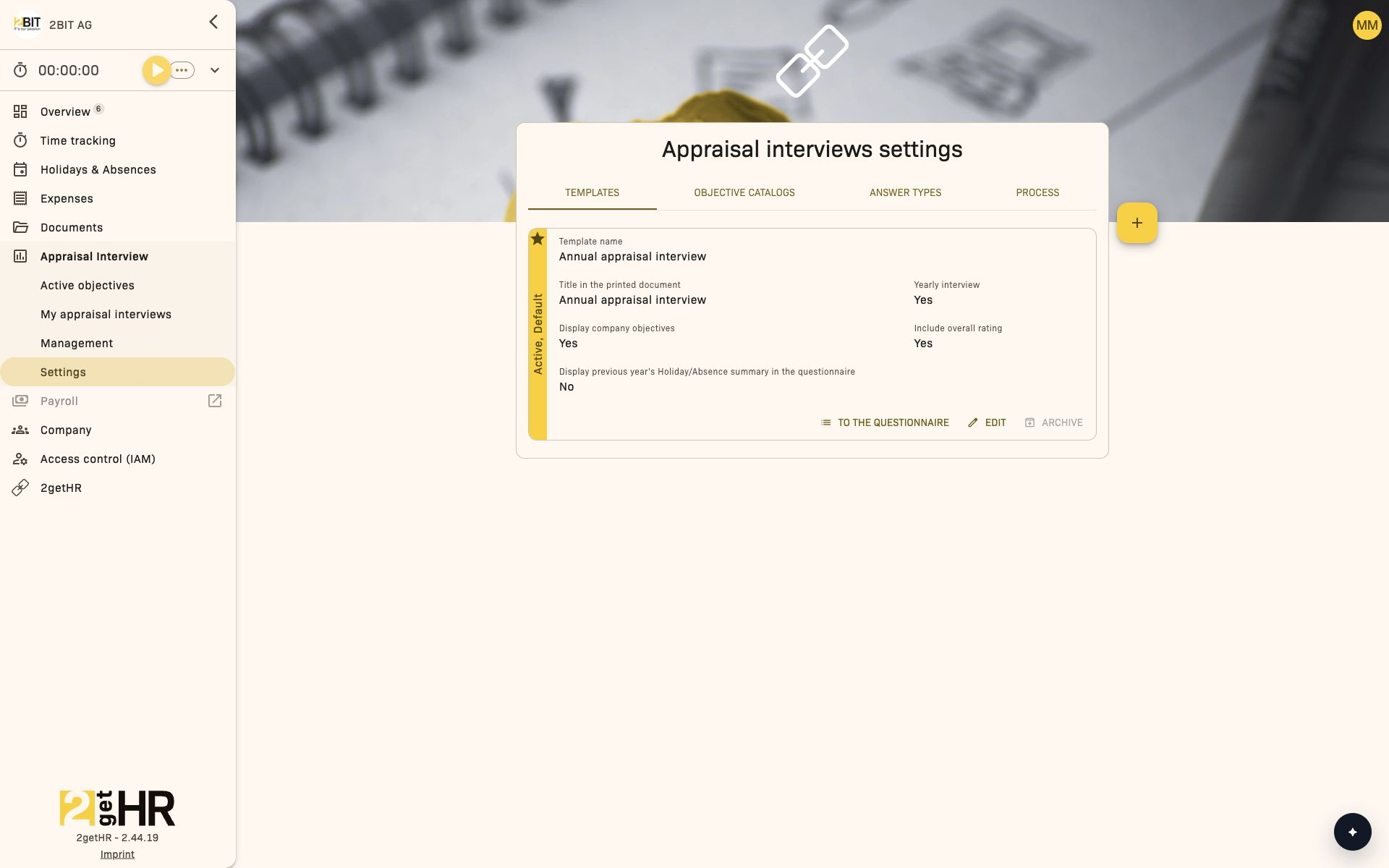
Access depends on the tab: Templates, Answer types and Process are configured by administrators. Objective catalogs are also accessible to organizational unit heads with the corresponding module access.
- Templates tab: Manage templates used to create interviews. Actions: Add, Edit, Archive, Set default.
- Objective catalogs tab: Maintain catalog entries for annual interview objectives.
- Answer types tab: Define and maintain rating scales and options. Each type can be set as the default.
- Process tab: Configure workflow behavior, such as automatic document creation, display of values and permission to skip steps.
Managers' area of responsibility
The head and deputy head of an organizational unit have access within that unit and its subordinate units. Without an organizational filter, the list remains restricted to this area of responsibility; it does not automatically show all employees in the company. Module access, role rules and the conditions for each action also apply.
The Appraisal Interview menu category is hidden for external employees. Only administrators can create new interviews, both individually and for all employees. Managers edit existing interviews within their area of responsibility and according to their assignment as interviewer; this does not grant permission to create new interviews.
Common tasks
Create or edit an appraisal interview template
Role: Administrator
- Open Appraisal Interview > Settings > Templates.
- Click + or Edit to open the template form.
-
Fill in Template name and Title in the printed document. If needed, add an Introduction text and specify whether this is a Yearly interview. Enable the required display options; Display company objectives and Display previous year's Holiday/Absence summary in the questionnaire are only available for annual interviews.
-
Save the template. The list reloads and confirms success.
Define rating scales
- Open Appraisal Interview > Settings > Answer types.
-
Click + to define rating options.
-
Save to make the type available in all templates.
Create appraisal interviews
Add a single interview (Administrator only):
- Open Appraisal Interview > Management.
- Click Single interview.
-
Select the required template in Appraisal interview type. Select the employee and choose the person conducting the interview under Supervisor. The assigned supervisor is suggested if available. For an annual interview, also select the Year. The employee and interviewer must be different people.
-
Confirm to create the entry.
Add all interviews (Administrator only):
- On the same page, click All employees.
- Select the template and year.
- Submit — interviews are automatically created for all eligible employees.
Conduct an appraisal interview
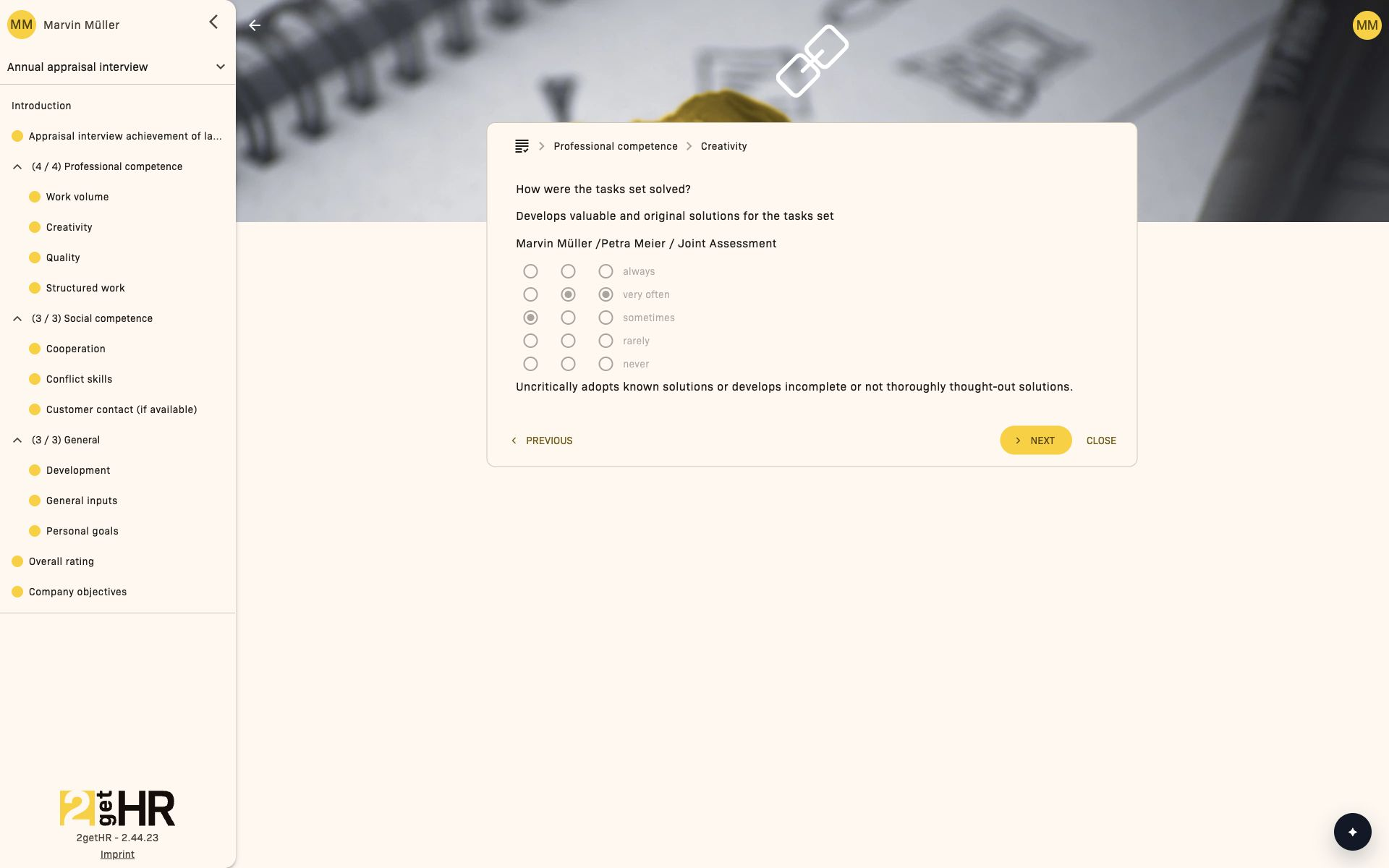
The following screenshots show the annual interview of Marvin Müller with Petra Meier as interviewer. The questions, objectives and assessment steps displayed depend on the template.
1. Employee and interviewer prepare
Open the assigned interview under My appraisal interviews in the appropriate tab. The interviewer can also open it through Management. Both parties answer the questions from their own perspective and save their preparation with Save.
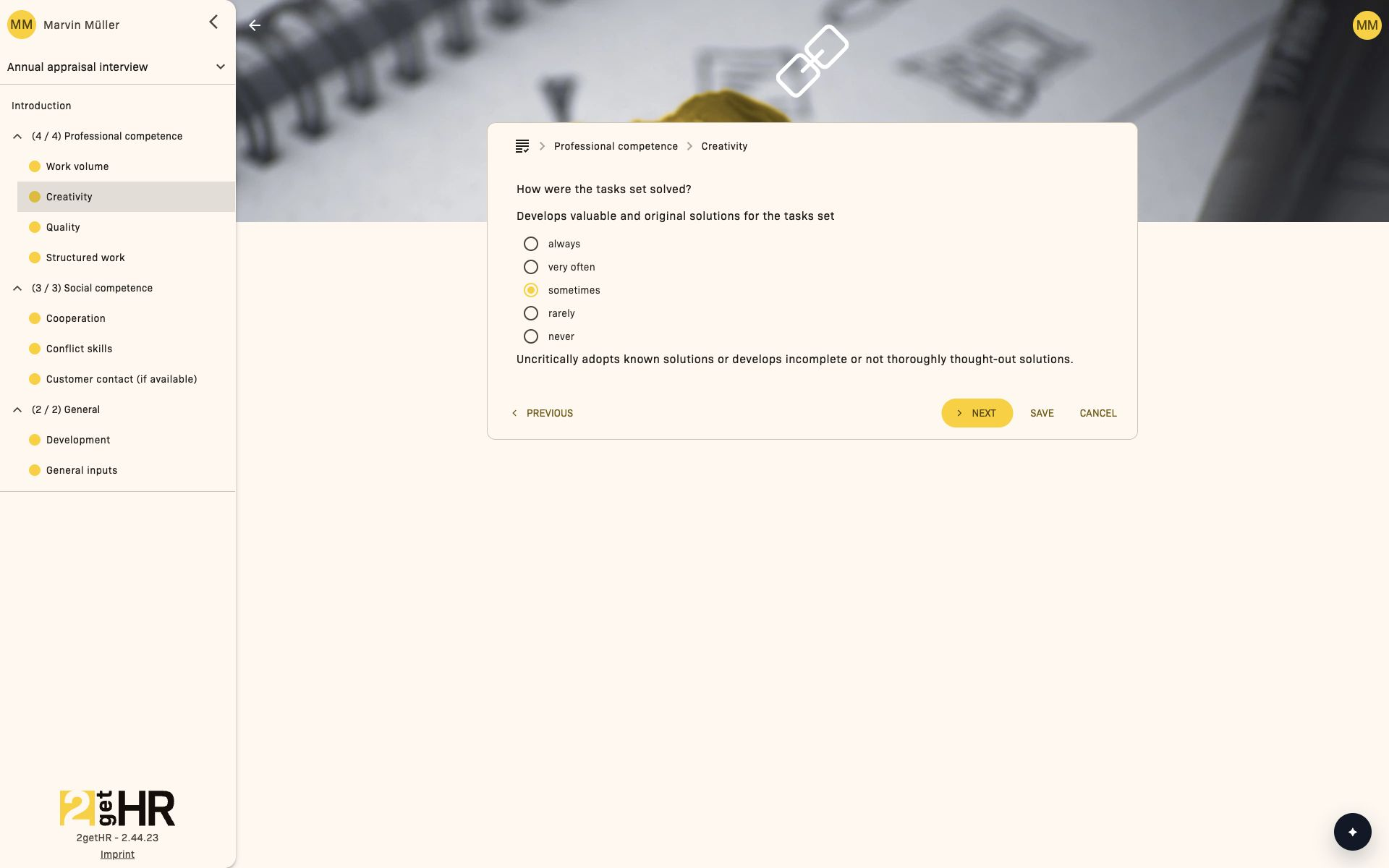
The interviewer's preparation may include additional steps such as Personal objectives, Overall rating and Company objectives.
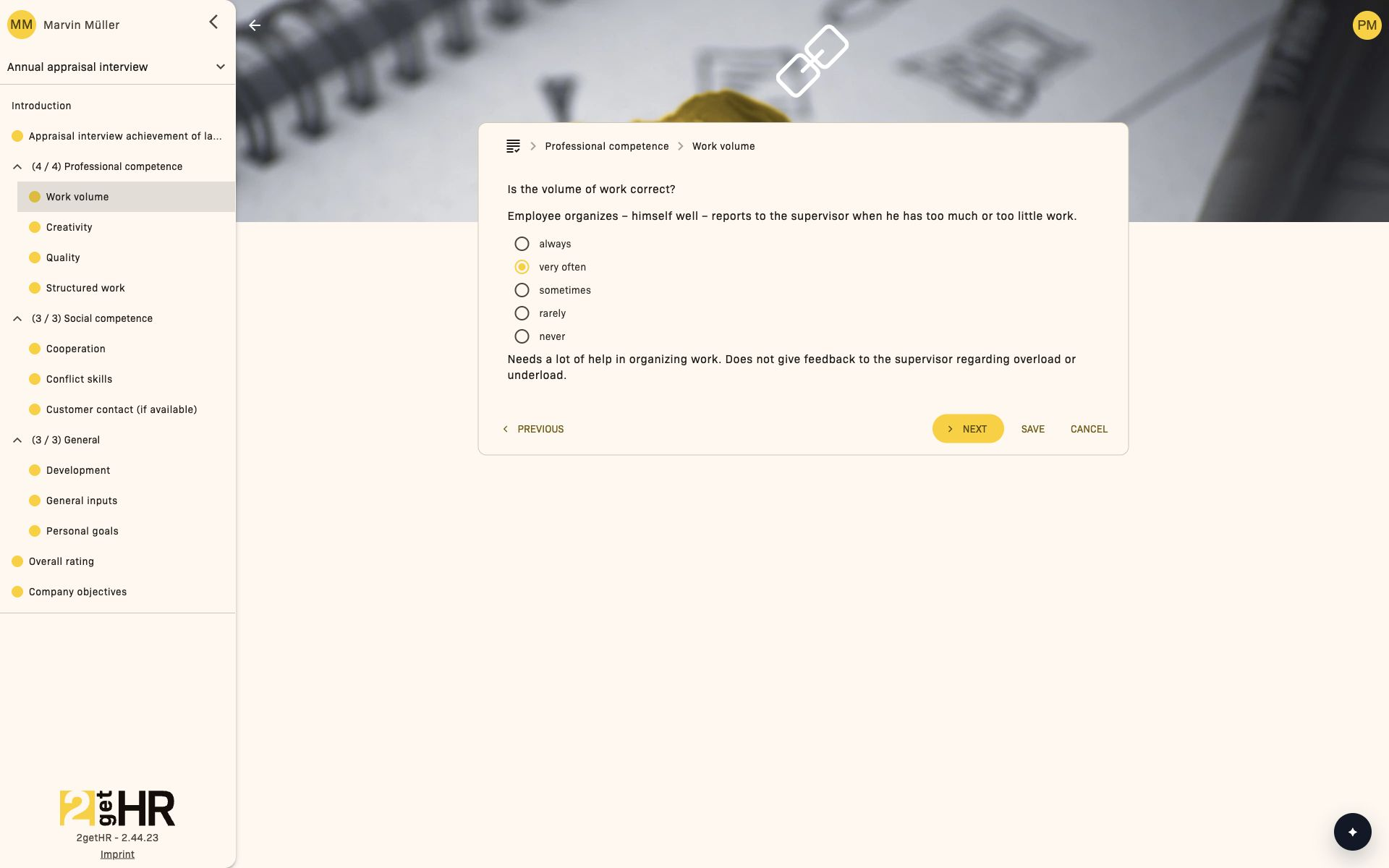
2. Both parties release their preparation
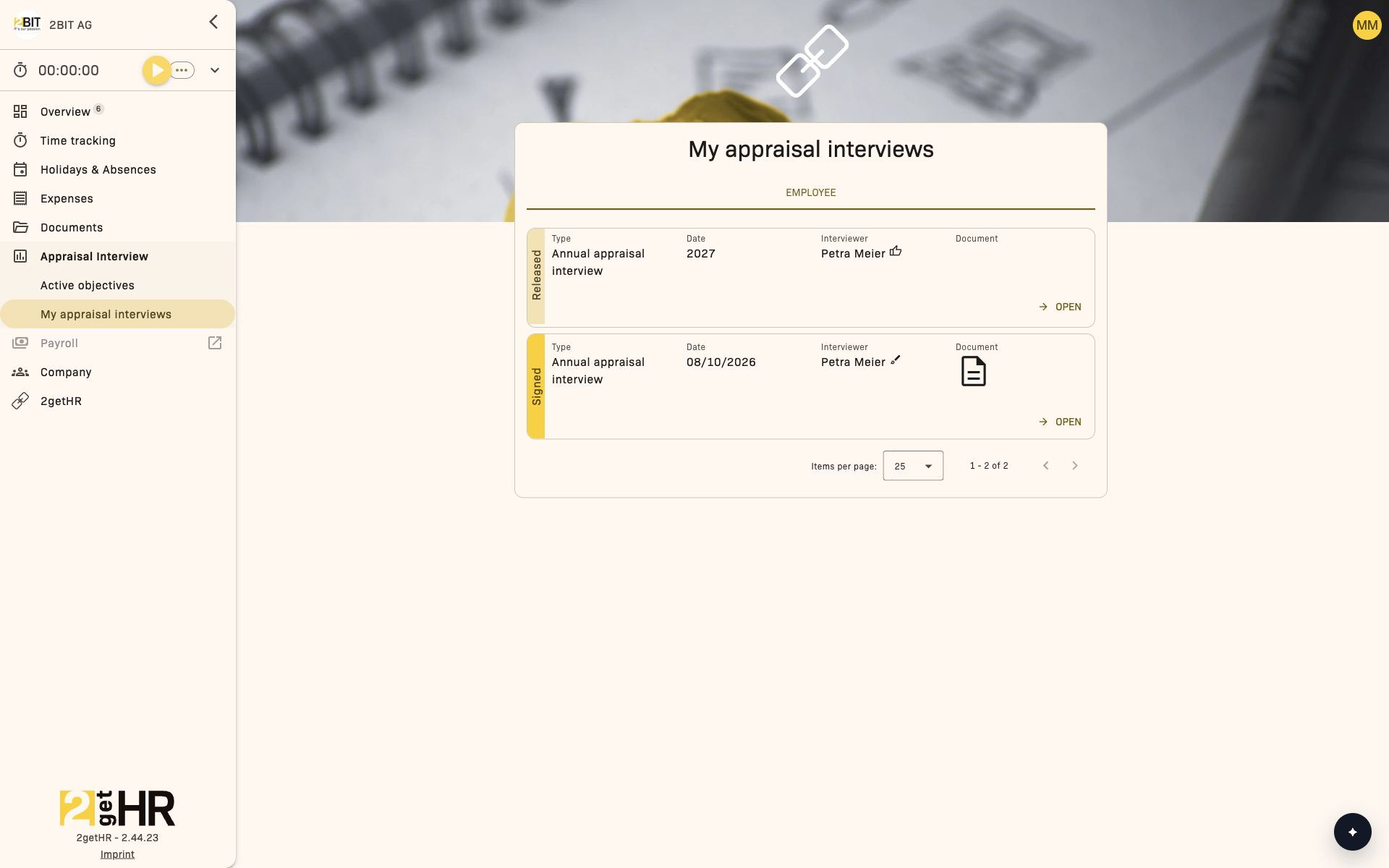
Return to the interview list and select the thumbs-up icon. Confirm Release in the dialog. Each party releases their own preparation. In the regular workflow, the interview can be conducted once both preparations have been released. Released preparation opens in view-only mode for employees.
3. Assess together and record agreements
The interviewer starts the interview using the play icon in the interview list. Both parties' prepared answers appear alongside the Joint Assessment. Discuss the differences and enter the joint assessment.
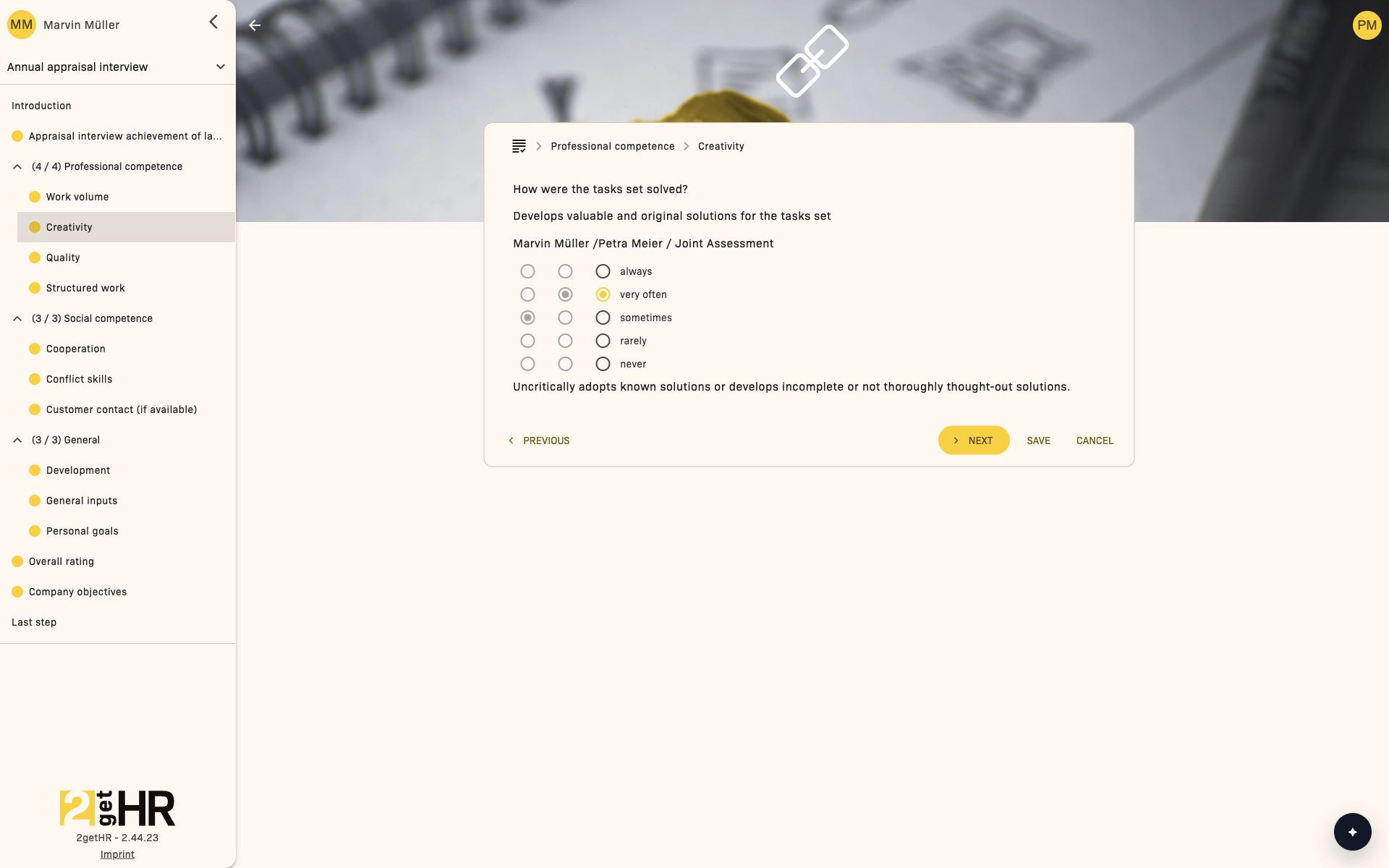
For text questions, add the jointly agreed development steps and comments.
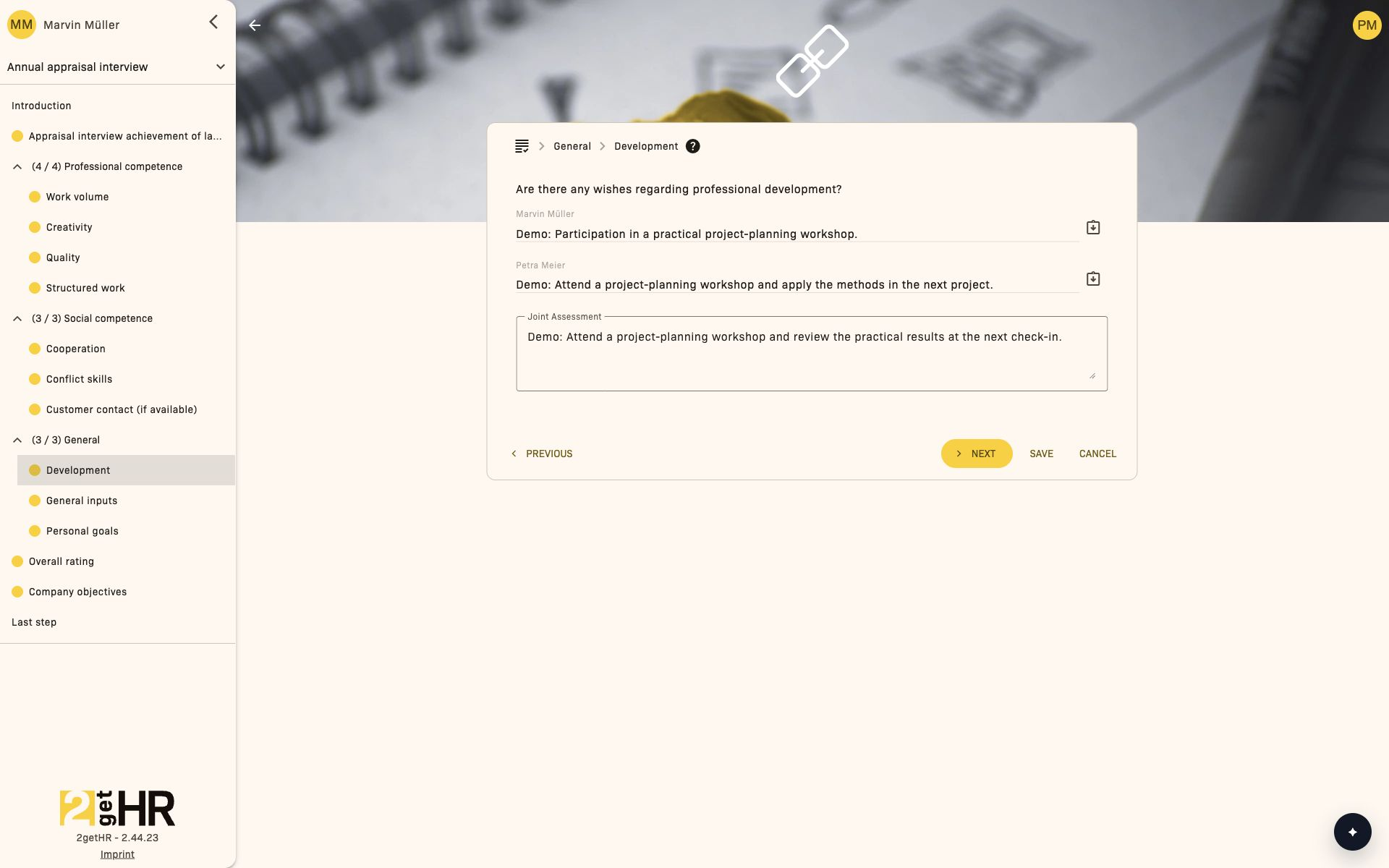
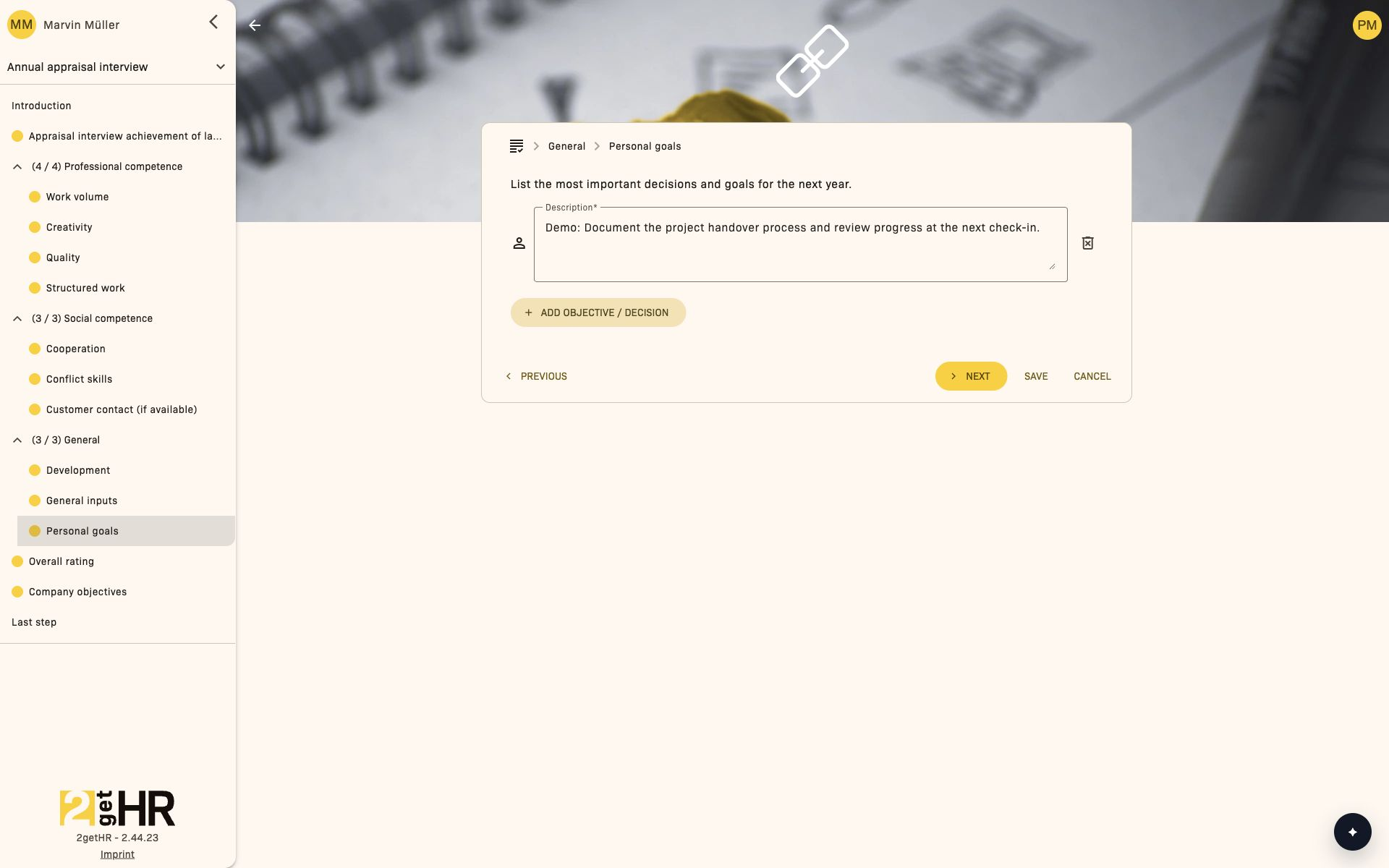
4. Review objectives and overall rating
Under Personal objectives, enter the agreed objectives and decisions. Then review the Overall rating and the displayed Company objectives. Use Save to save progress during the interview.
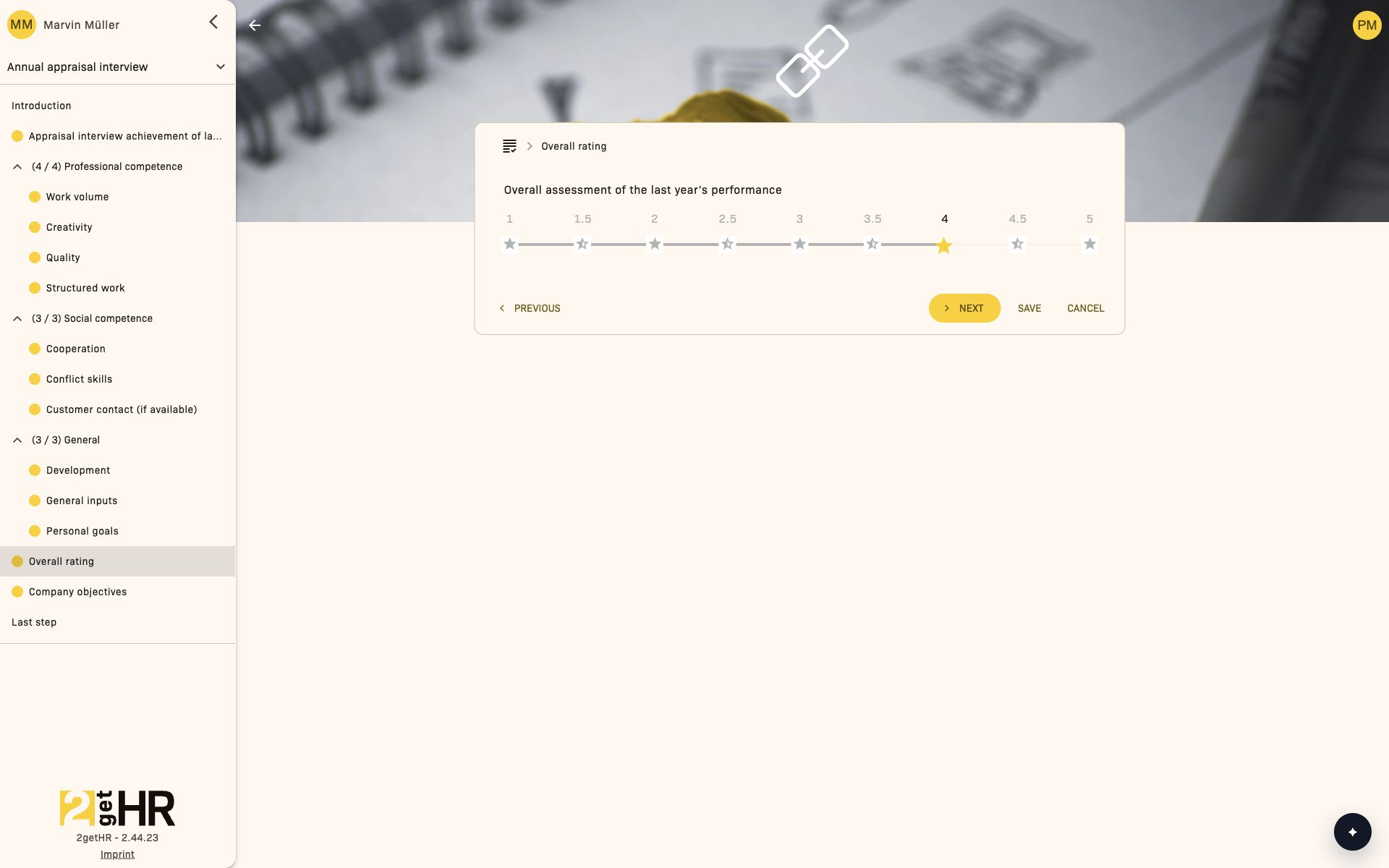
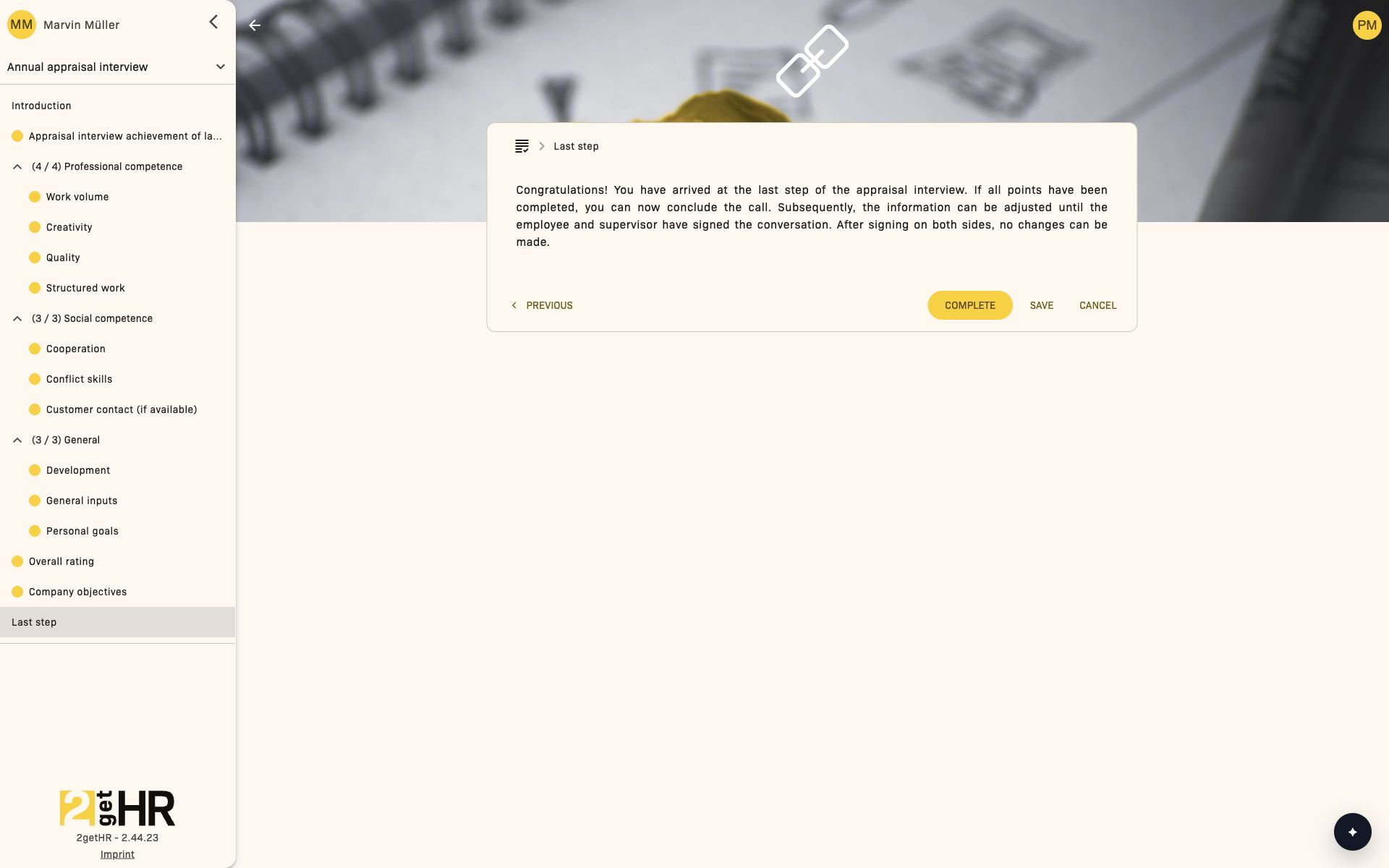
5. Complete the interview
Go through all steps, including Introduction, and fill in the required information. In Last step, select Complete. If information is missing or a step has not yet been visited, the application returns to that step. Once successfully completed, the interview has the status Done and can be signed.
6. Both parties sign
Check the information before signing. The interviewer and employee each sign using the brush icon in their interview list. This button signs immediately. The screenshot shows Marvin's signature still pending; Petra has already signed.
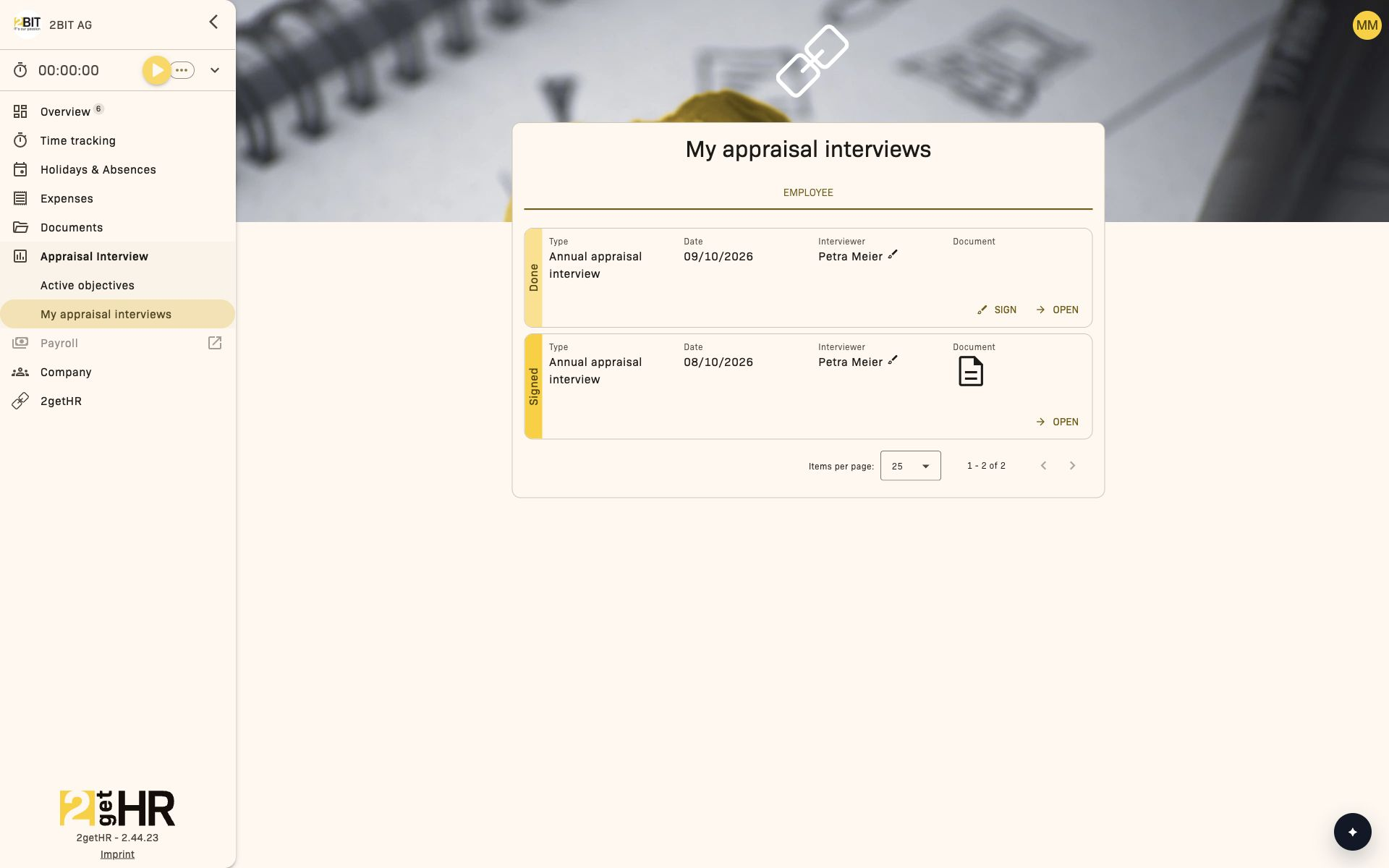
After both signatures, the interview has the status Signed. The document appears in the interview list. Assessments and agreements are then read-only and can no longer be changed.
The agreed personal and company objectives are then available under Appraisal Interview > Active objectives. The populated view is shown in the Active objectives section.
A warning appears when leaving an editable interview page with unsaved changes.
Settings
Administrators can adjust the workflow in the Process tab:
- Document creation for appraisal interviews: Controls document creation for appraisal interviews. In the workflow shown, the document appears after both signatures.
- Show answer values in the navigation: Displays rating values in the side navigation for a quick overview.
- Allow interviewer to skip employee's preparation: The interviewer can skip the preparation phase.
- Allow interviewer to skip employee's signing: The interviewer can complete the process without the employee's signature.
- Allow to reset the release for an appraisal interview: Allows administrators to use Reset release to reset a released appraisal interview that has not yet been signed.
Changes apply throughout the company when saved.
Tips and troubleshooting
- Editing locked: If fields are grayed out, the template or answer type is already linked to existing or completed interviews.
- Year field missing: The year is only required for annual templates; for other templates, the field is hidden.
- Skipped phases: If skipping steps is allowed, bear in mind that skipped phases cannot be reopened later without administrator intervention.
- Unsaved changes: Always click Save before leaving the page to avoid losing data.