Self-Service Portal
Overview
The Self service area allows employees to manage their personal and employment details themselves, directly in 2getHR. It serves as a central employee-focused hub where users can review and update information such as addresses, identity documents, bank accounts, family details, contact numbers and other personal information. Under Overview > Settings, you define company-wide which items appear in self service, onboarding or both.
This feature is available to all users who have been granted self-service access.
To access the portal, employees open Overview > Self service in the main menu. This takes them to their personal overview page with configurable widgets.
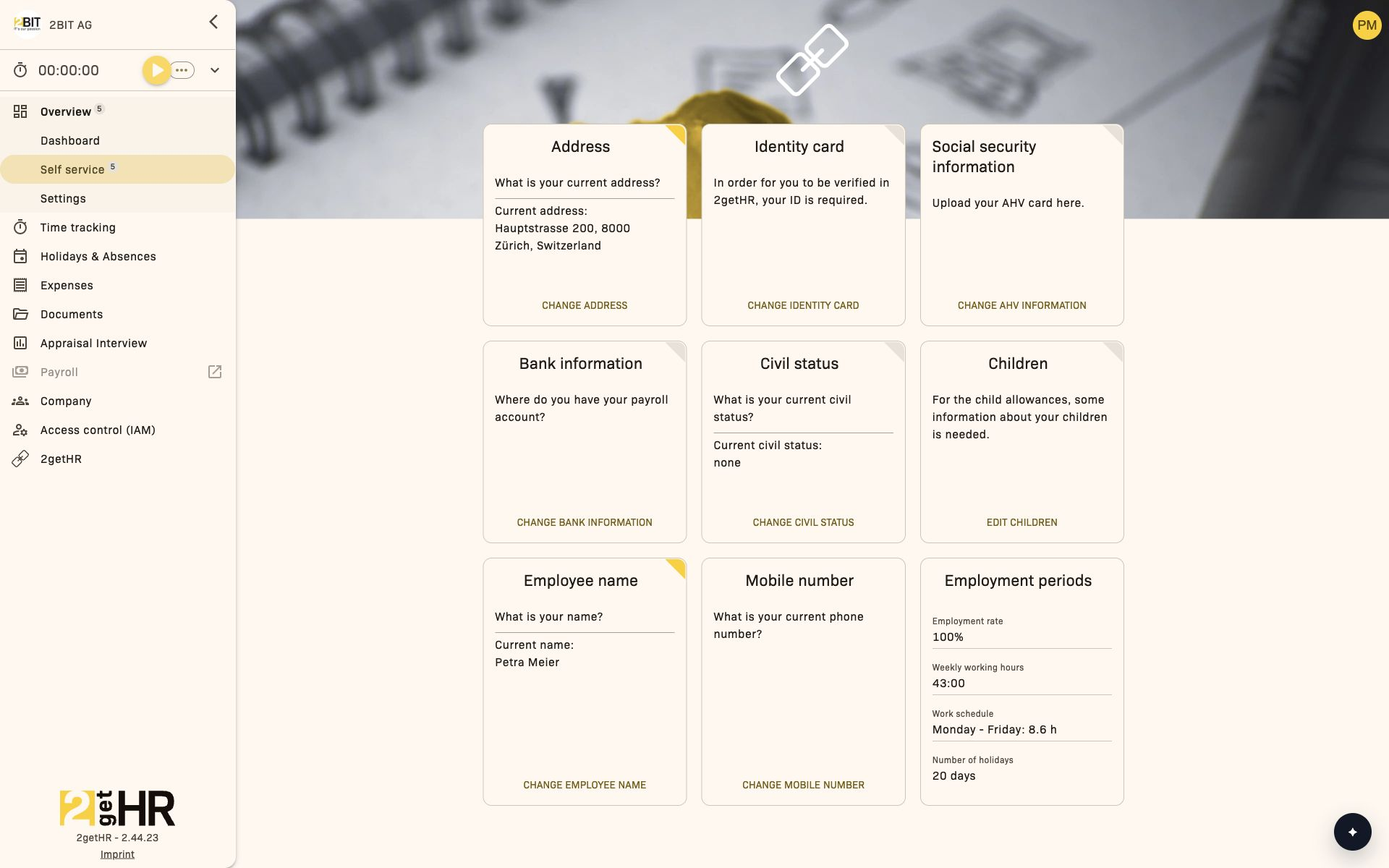
Employee view
Self-service overview tab
This is the feature's main workspace. It consists of a widget board displaying different areas of an employee's personal data as interactive cards. Each editable card represents a data group such as address, emergency contacts or bank information. Key capabilities:
- Open editing dialogs: Clicking a card opens the corresponding editing form.
- Display current values: Data fields are directly visible.
-
Navigate to data areas: Only widgets enabled in the configuration are displayed. Example widgets:
-
Address — Full home address.
- Identity card and Social security information — Personal identification or insurance numbers.
- Bank information — Bank details for salary payments.
- Civil status and Children — Family details.
- Mobile number and Emergency contact — Contact information.
- Nationality — Employee's nationality.
- Additional information — Religion and place of origin.
- Employment periods — Current employment period.
Employee onboarding
A dedicated onboarding wizard guides new employees through entering the required data. Each step corresponds to a specific form area. Typical steps include Address, Civil status, Bank information and Emergency contact. Main actions:
- Next: Moves to the next area.
- Skip this step: Skips optional fields.
- Save: Saves all validated data.
- CANCEL: Cancels the process.
Common tasks
Complete employee onboarding
- Open Overview > Self service in the main navigation.
- When prompted, click Go to self service to open Onboarding.
- Follow the wizard, completing one area at a time.
- Use Next to continue or Skip this step for optional steps.
- Once all required fields are filled in, click Save.
- A confirmation indicates that the update was successful.
Edit self-service data using widgets
- Find the card on the Self service page.
- Click the edit icon.
- Add or update the fields.
- Press Save.
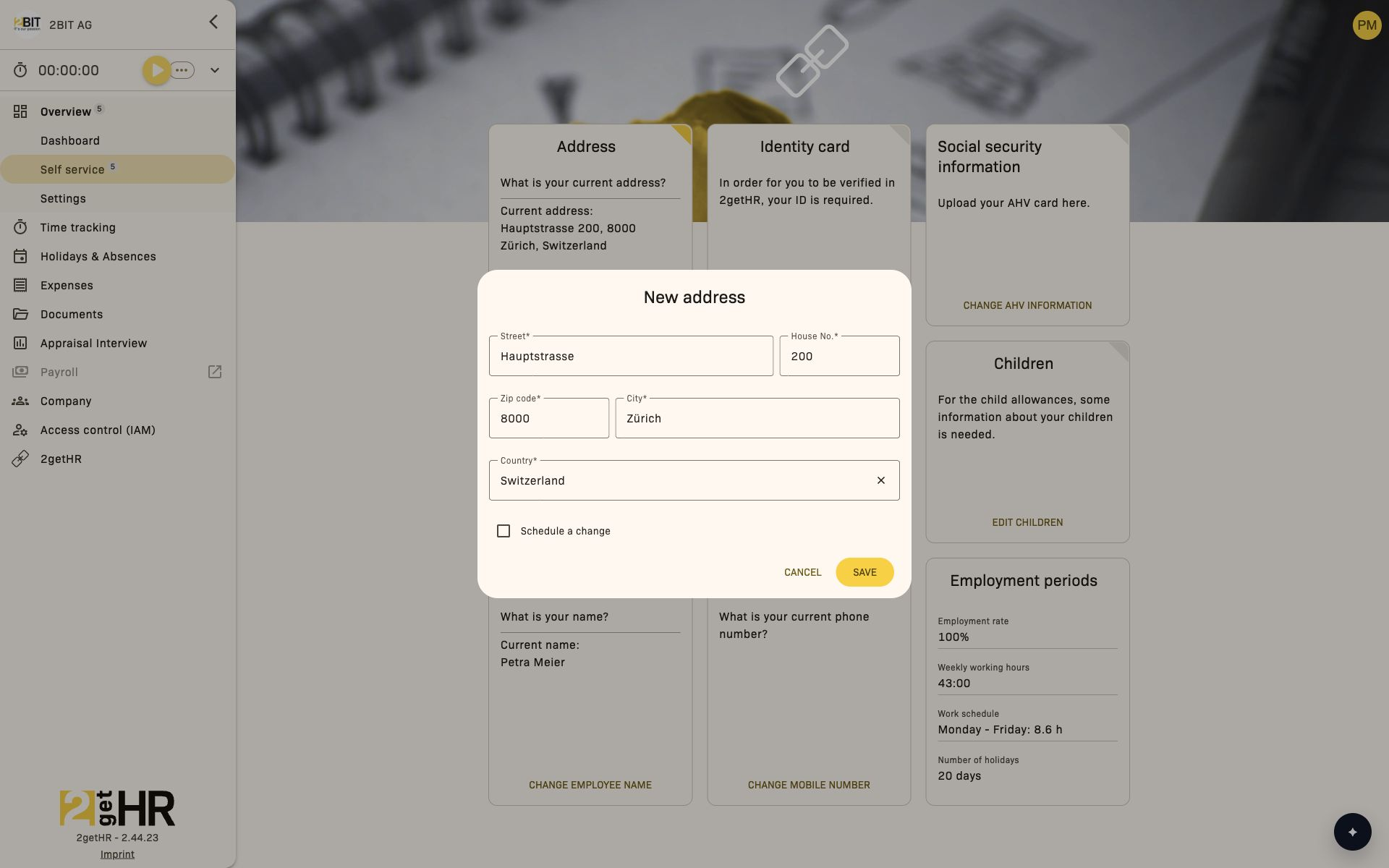
Fields in the onboarding form
- Address: Home address including street, number, postal code, city and country.
- Passport / Identity Card: Identity card or passport details.
- Social identity card: Swiss social security information.
- Bank information: Account and IBAN details.
- Civil status: Marital status.
- Children: Dependents.
- Mobile number: Mobile phone number.
- Emergency contact: Contact person for emergencies.
- Additional information: Religion and place of origin.
Tips and troubleshooting
- Missing widgets: May be disabled in Self service Settings.
- Validation errors: Check all required fields.
- Skipped steps: Do not invalidate submission.
- Submission failed: Check the network connection.
- Data not updated: Reload the page.
Self service Settings
Overview
The Self service Settings page allows administrators and back office staff to configure which areas of the self-service portal are visible to employees and whether supported areas also appear during onboarding.
Access it in the sidebar under Overview > Settings. Only users with administrator or back office roles have permission.
Settings view
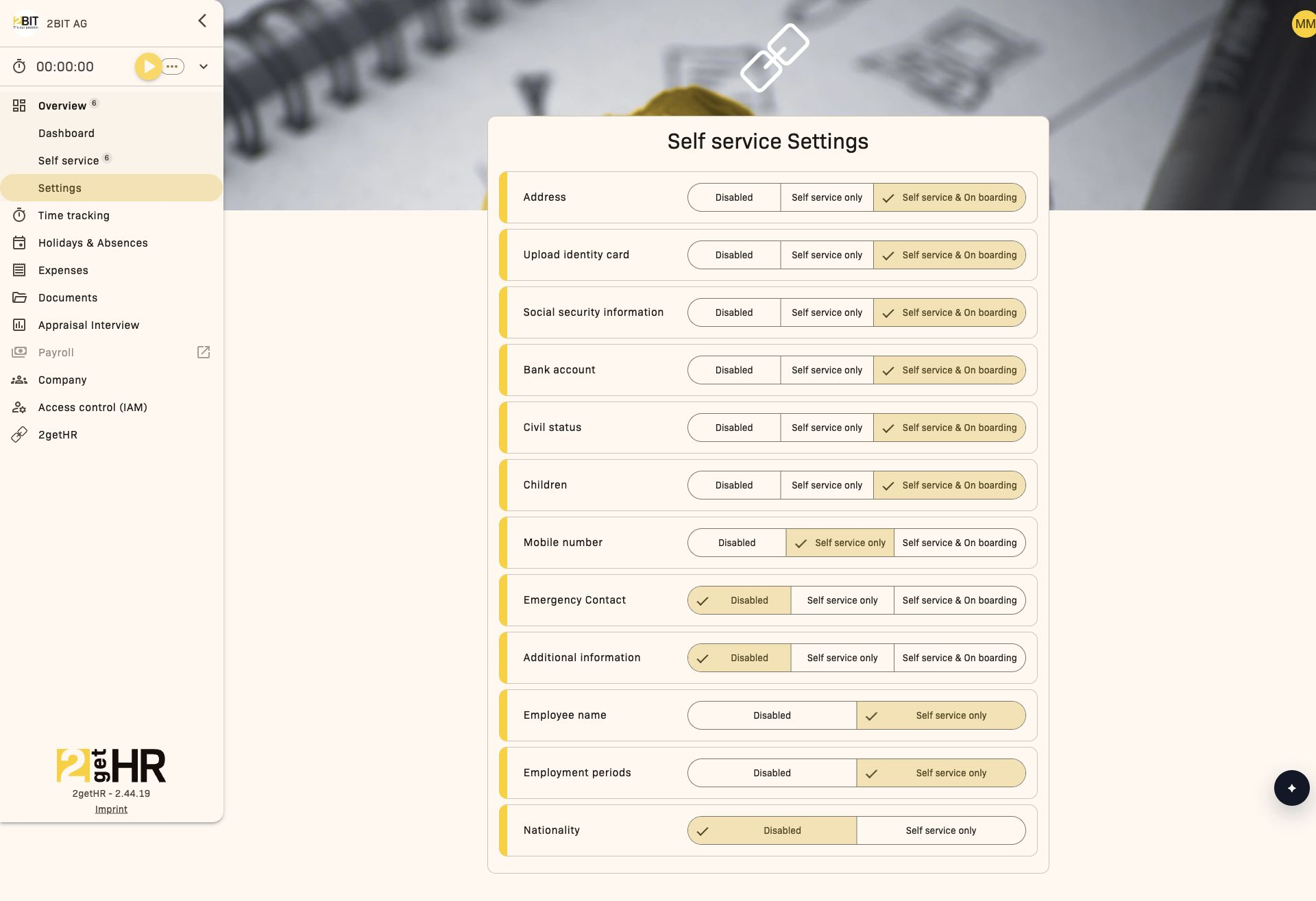
The settings interface is a single, unified page organized as a list. Each entry corresponds to an area of the self-service portal and can be adjusted directly using a selection control.
Key elements:
- Area label — Name of the configurable area (e.g. Address, Bank account).
- Selection control — Determines how the area appears in the employee portal.
- Progress indicator — Appears briefly while saving.
- Confirmation notification — Confirms that saving was successful.
Every change to a selection control is saved immediately — there is no separate save button.
Common tasks
- Open Overview > Settings.
- Review the listed areas — each entry corresponds to a section that employees can manage themselves.
-
Select the required mode for each entry:
-
Disabled — The area is not available in the self-service portal.
- Self service only — The area is available in the self-service portal.
-
Self service & On boarding — The area is available in the self-service portal and also appears during onboarding.
-
Repeat for all areas. Every change is saved immediately.
Configurable areas:
- Address — Controls the visibility of address information.
- Upload identity card — Determines whether identity document details are collected.
- Social security information — Controls the display of AHV information.
- Bank account — Enables or hides bank details entry for payroll.
- Civil status — Manages the display of marital status.
- Children — Determines whether information about dependents is requested.
- Mobile number — Controls the visibility of the personal phone number.
- Emergency Contact — Determines whether employees can provide emergency contacts.
- Additional information — Generic area for additional company-specific fields.
- Employee name — Configurable; the onboarding option is not available.
- Employment periods — Manages the display of employment history; the onboarding option is not available.
- Nationality — Controls the display of nationality; the onboarding option is not available.
Tips and troubleshooting
- Tip: To test configurations, temporarily set an area to Self service only and sign in as an employee to check its appearance in the portal.
- No save button: Changes are saved automatically for each entry — there is no global save button.
- Changes not visible: If changes do not appear immediately in the self-service portal, refresh the page.