Documents
Overview
The Documents feature provides centralized access to company and employee documents. It allows digital files to be uploaded, viewed and managed. Access it via Documents > Files management in the sidebar. Tab layout: Documents (company) and Dossier (employee records).
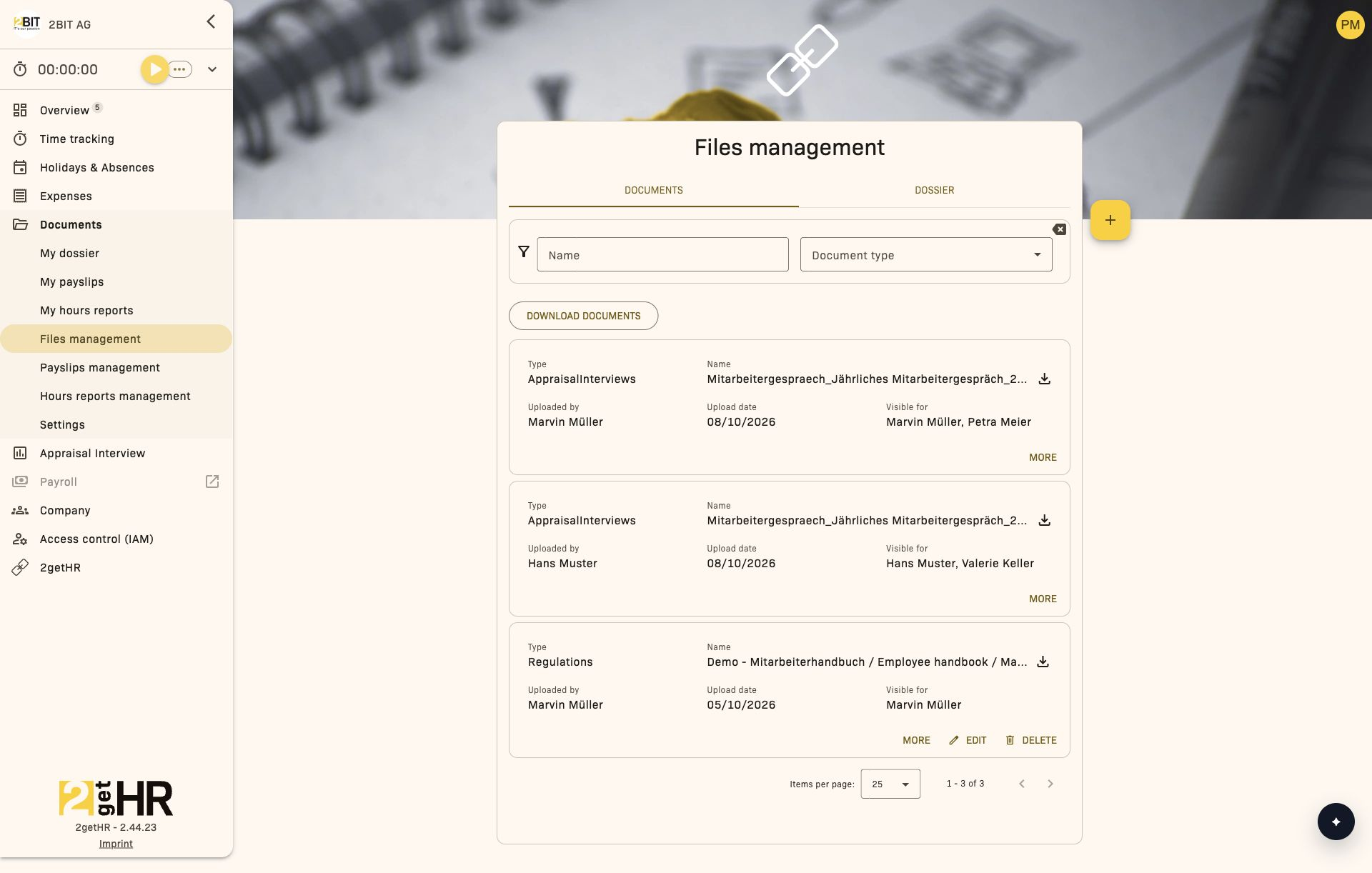
This area requires access to the confidential documents module. If access control (IAM) is enabled, your effective permissions determine whether the module is available to you. The role and record restrictions for each action still apply.
Management view — files layout
Documents tab
Lists uploaded company documents. Filter by document type or employee. Actions: Document and Contract to sign via the + button, and Download documents. Available to administrators or users with permission to create contracts; the required module access must also be granted.
Dossier tab
Employee-specific folders. Restricted to administrators and organizational unit managers.
Employee view
Shows personal records. Use + to add a document; Download documents opens the archive dialog.
Settings
Company signers and Document types tabs.
Common tasks
Upload a company document
- Open Documents > Files management > Documents. Click + and select Document.
- Fill in Notes, Public, Employees and Organizational units.
- Attach files. Click Submit.
Prepare a contract for signing
- Open Files management > Documents and select Contract to sign.
- Upload a PDF under Upload file and use Next to proceed to Edit title.
- Set the document name, Employees count and, if applicable, Employers count. Company signers must first be configured under Documents > Settings > Company signers.
- Under Select signers, select employees and company signers. Unverified employees can only sign the contract after verification.
- Drag the plus element for each signature to the required position on the PDF page. All planned signature areas must be placed.
- Check the file, recipients and positions, then click Send.
Upload a personal document
- Open Documents > My dossier. Click +. Add a note. Select a file. Confirm.
Edit a document
- Click the edit icon. Update the title, document type, Public, visibility targets and notes. Click Save.
Tips
- Dossier tab missing: Check permissions.
- Upload failed: Check file size and format.
- Contract type cannot be edited: Locked to preserve signature integrity.
- Export archive: Only visible items are included.
Employee documents
Overview
Employee documents allows individual employees to view, manage and work with their own digital document dossier. It provides a central repository for employment-related documents such as contracts, salary confirmations, certificates and personal forms. Documents can be uploaded, edited when permitted, signed electronically or deleted through an approval process. Employees can also download filtered archives as ZIP files for their records.
You need access to the confidential documents module for this area. When Access control (IAM) is enabled, effective permissions determine whether the module is available to you. The role and record restrictions of each action still apply.
Authenticated regular employees with access to confidential documents can open this module through Documents > My dossier in the application's main menu. On opening, the system automatically loads the employee's latest document collection, with the most recent uploads at the top.
This feature is primarily intended for employees using self-service. In your dossier, you can edit documents you added yourself, provided they are neither shared nor automatically generated. The related Document signing and Document viewer areas allow documents to be signed and read.
My dossier
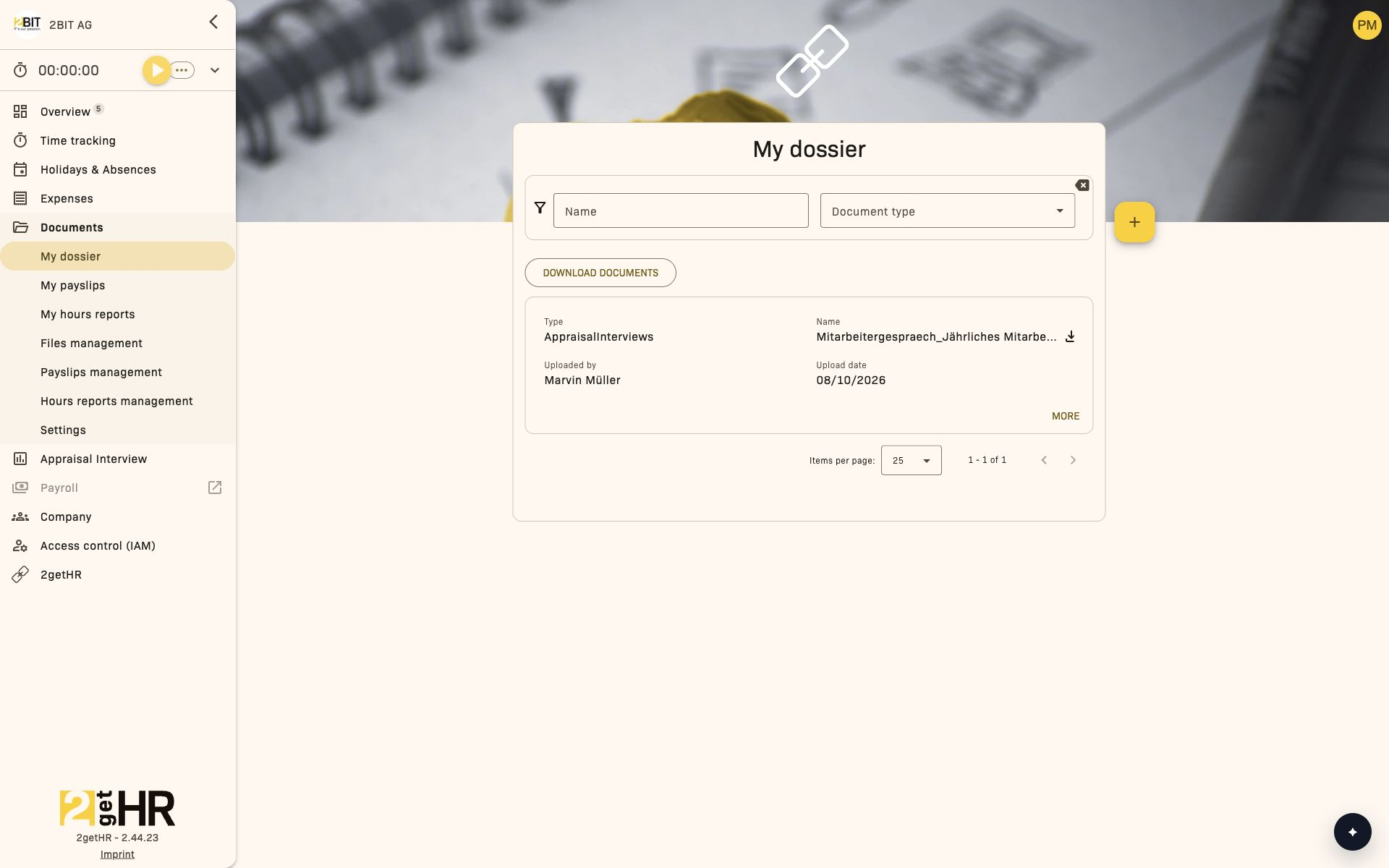
My dossier is the central view. It displays accessible dossier documents in a paginated list.
Document list
Each entry shows the following information:
- Type: Identifies the document category, for example a contract, payslip or certificate.
- Name: The document's name.
- Uploaded by: The person who uploaded the file.
- Upload date: When the upload took place.
- Deletion requested by: The person who requested deletion.
- Deletion confirmed by: The person who confirmed deletion.
- Pending confirmation from: The person whose confirmation is still outstanding.
- Notes: Notes about the document.
Filters and pagination
Use Name to search for documents by part of their name. You can also restrict the list to a document type. The filters also affect the initial selection when downloading an archive.
Actions
Depending on the document and your permissions, the following actions are available:
- Download documents: Opens the dialog for creating a ZIP archive of the filtered documents.
- +: Opens the form for adding new files.
- Open: Displays a document intended for signing in the viewer. This action appears only for such documents.
- Sign: Opens the signing process if a signature area is still assigned to you.
- Edit: Available only for documents you added yourself that are neither shared nor automatically generated.
- Delete: Available under the same conditions as Edit.
- Request deletion: Available for fully signed documents if you are a designated signer and no deletion is pending.
- Confirm deletion: Available when your confirmation is pending in the deletion process.
Common tasks
Upload a new document
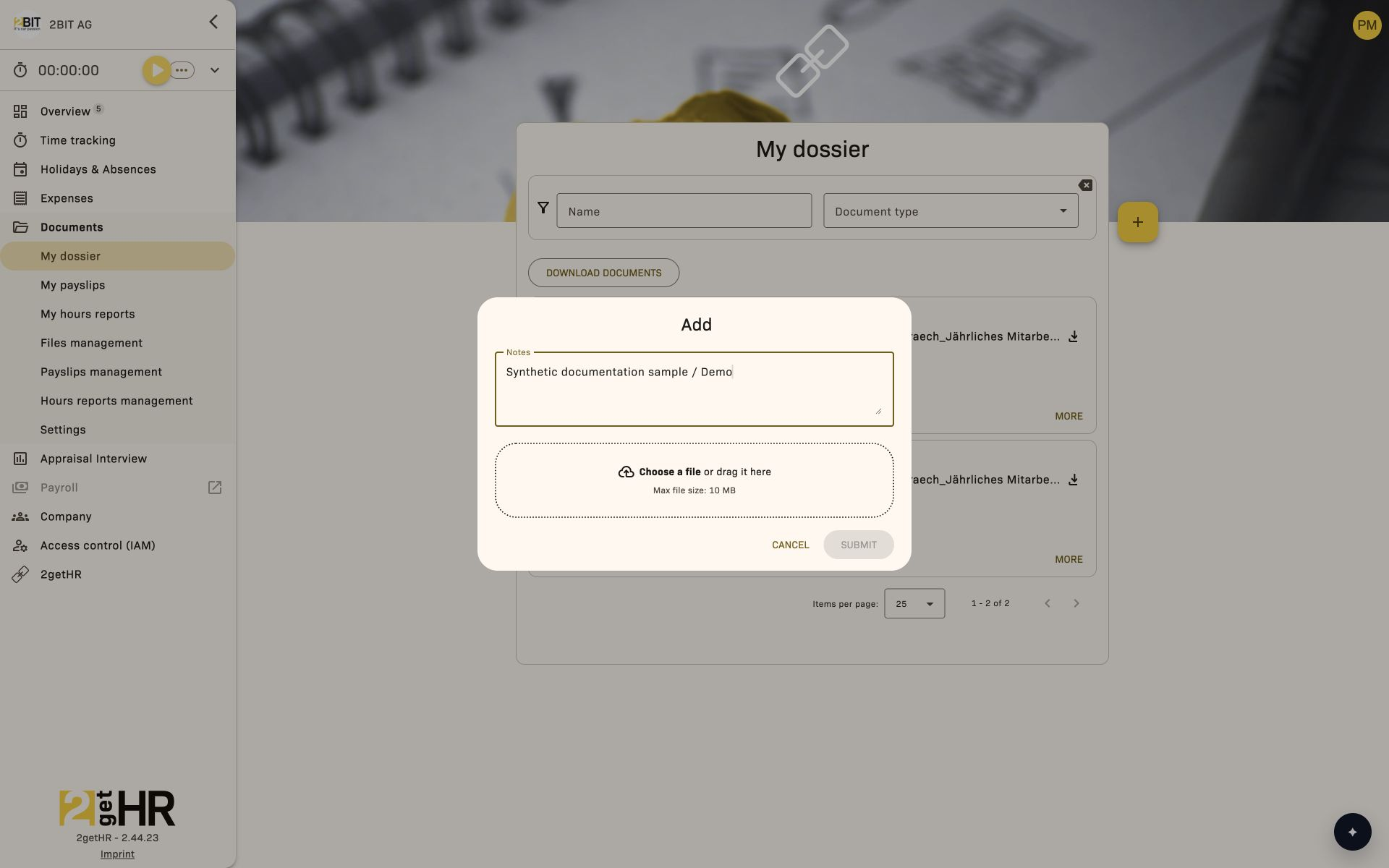
Employees can upload multiple files through the upload form:
- Click +.
- Upload at least one file.
- Select a Document type for each file and check the prefilled Document name. The name cannot be empty and may contain at most 225 characters.
- Enter Notes if needed.
- Click Submit to start the upload. The dialog closes automatically on success.
Edit a document
To adjust metadata or notes for your own editable documents:
- Find your document in the list.
- Click Edit beside the file.
- Adjust Document type, name or Notes as needed.
- Save the changes. The dialog closes after a successful save.
Sign a document
Documents with an outstanding signature assigned to you show Sign:
- Click Sign to open the signing view.
- Select each signature area assigned to you and draw your signature. You can insert a saved signature with Use saved signature and keep a new one for later with Save signature.
- Click Submit once all areas assigned to you are completed.
You can sign a contract only after verification.
View a document
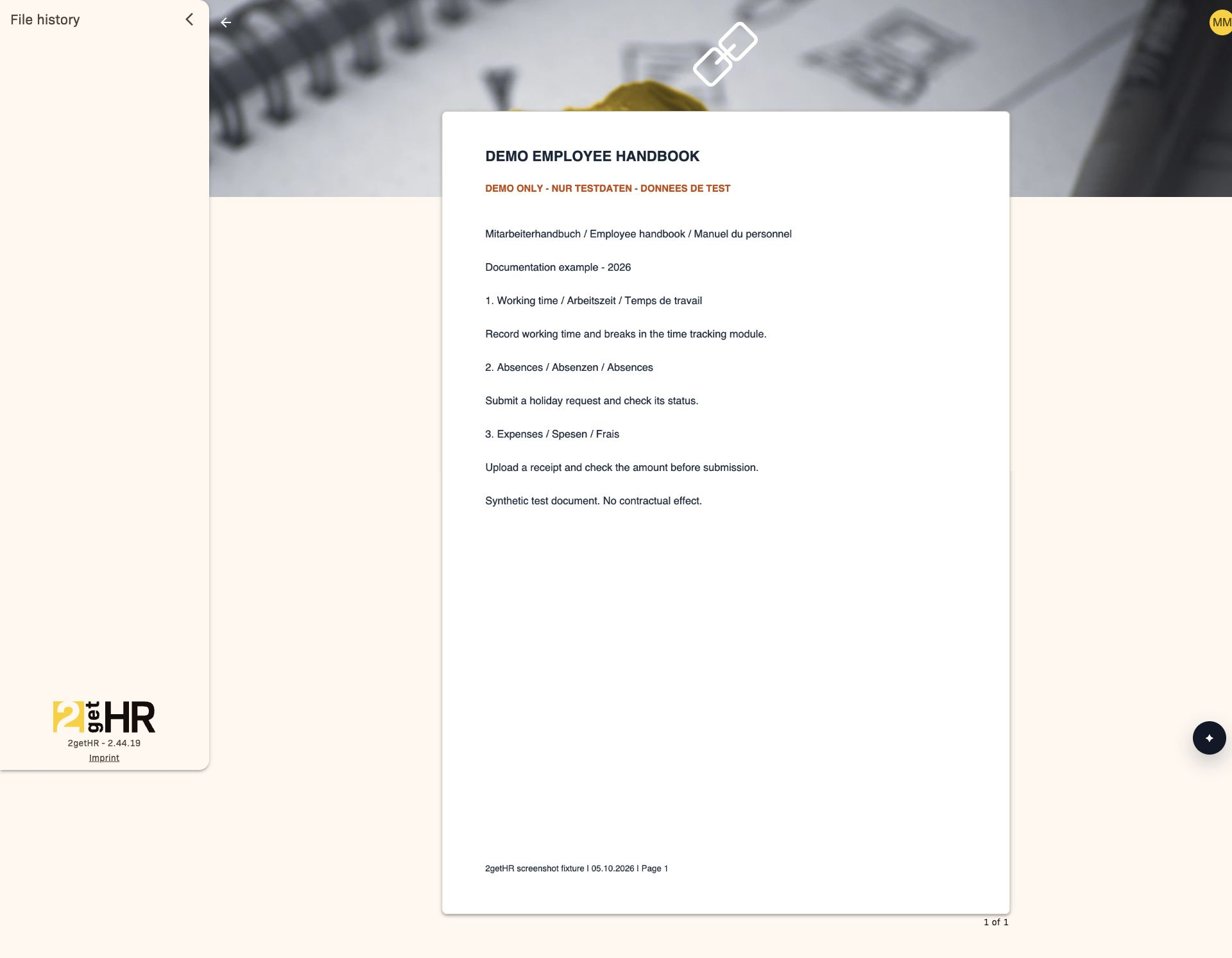
For a document intended for signing, use Open to launch the viewer. File history shows the file and the available history. You can download the Original file there. The Signed file is available only once all signatures are complete. Ordinary dossier files without this action can be downloaded through the filename or download icon.
The illustration shows the PDF in the viewer. It does not show a completed signature or a signed file version.
Download multiple documents
After filtering the results, click Download documents:
- Select at least one document. Use Check all and Uncheck all to adjust the selection.
- Enter a Filename for the ZIP archive.
- If needed, enter a Zip password and repeat it under Confirm password.
- Click Download.
Role-based access summary
- Authenticated regular employee with access to confidential documents: Can open and search the dossier and download documents.
- Employee who owns the documents: Can upload their own documents and edit or delete their own editable documents.
- Assigned and verified signer: Can sign assigned outstanding signature areas.
- Person confirming a deletion: Can confirm pending deletion requests.
Tips and troubleshooting
- Document cannot be edited: Check whether it is shared, automatically generated or was added by someone else. Only your own documents that are neither shared nor automatically generated can be changed.
- Sign is unavailable: The action appears only when an outstanding signature is assigned to you.
- Signature cannot be entered: Check that your employee account is verified and that all signature areas assigned to you have been completed.
- Archive cannot be downloaded: Select at least one document, enter a filename and, if using a password, check that both password entries match.
- Deletion request not processed: The deletion remains pending until all required confirmations have been received.
- Document missing from the list: Refresh the page or check Name and the selected document type.
Company contracts
Overview
Company contracts provides a central workspace for company signers to view, sign and manage documents requiring their signature. It is designed to simplify handling all signer-specific documents, such as contracts, policies and formal approvals, with verifiable electronic signatures. This feature supports compliance with internal workflows and document lifecycle rules while providing a straightforward user experience.
You need access to the confidential documents module for this area. When Access control (IAM) is enabled, effective permissions determine whether the module is available to you. The role and record restrictions of each action still apply.
Users with the Company signer role can open this area from the main navigation under Documents > Contracts management. On opening, the system automatically loads the relevant document list for the signed-in user. Each list entry represents a document that either requires action or can be viewed for reference.
This feature supports key actions including electronic signing, document viewing and requesting or confirming document deletions when needed. It also integrates with My dossier, Document signing and Document viewing, sharing data and processes for consistent behavior and governance.
Company contracts view
The main page shows all documents relevant to the signed-in company signer. Each document entry contains metadata, status details and available actions according to its status and the user's permissions.
Fields
Each document card shows these fields:
- Type: Indicates the document's category or purpose.
- Name: The assigned document title or filename.
- Uploaded by: Shows the name of the person who uploaded the document.
- Upload date: Shows the exact date the document was added to the system.
- Deletion requested by: Shows who first requested deletion, where applicable.
- Deletion confirmed by: Shows who approved the deletion request.
- Pending confirmation from: Indicates which parties still need to confirm deletion.
- Notes: Additional information or notes about the document.
Filters
The view includes Name to narrow the list by document title.
Actions
Depending on document status and permissions, these actions appear for each document:
- Sign: Opens the signing interface, where you place your signature in the required fields.
- Open: Displays the document in the read-only viewer.
- Request deletion: Starts a deletion workflow; available only once all signatures are present, you have signed the document yourself and no deletion has yet been requested.
- Confirm deletion: Confirms a pending deletion when you are designated as an approver for document removal.
Common tasks
Sign a document
To sign a document that needs your approval:
- Go to Documents > Contracts management and find an entry showing Sign.
- Click Sign.
- The system loads the document in the signing viewer and shows signature placeholders.
- Select each required Sign here field and insert your signature image using the signature input tool.
- Once all required fields are completed, click Submit.
- The system processes the signing action and returns you to the list, where the document appears as signed.
Form fields in the signing viewer:
- Signature fields: Interactive areas in the document where a signer must place an image-based signature. Each field must contain a valid signature before submission. Validation ensures that all fields are completed before submission is possible.
Your document list updates automatically after successful signing.
View a document
- In the main document list, click Open for the relevant entry.
- The viewer opens in read-only mode.
- You can scroll through the pages. The File history sidebar contains the original file, signature status and, after all signatures are complete, the signed file for download.
Request or confirm deletion
- To request deletion: Select Request deletion when the document is fully signed and you have signed it yourself.
- To confirm deletion: Approvers with a pending confirmation see Confirm deletion. Clicking it completes the deletion process once no further confirmations are outstanding.
Relationships with other features
- My dossier: Shares the underlying document collection so that signers see the same records employees manage in their dossier.
- Document viewing: Reused for all read-only access through Open, or when signing has already been completed.
Tips and troubleshooting
- If Sign is not visible, no outstanding signature is assigned to you for this document. Contact your administrator if you expected a signature assignment.
- If opening the signing view displays a notice that you can sign the contract only after verification, complete your employee verification first.
- If an already signed document still appears as pending, refresh the list or reopen the page to load the current status.
- Use Open instead of Sign if you only want to check the content.
- Deletion may require multiple approvals. Check Pending confirmation from for outstanding confirmations.
- On the signing screen, make sure every signature field is completed. Submit is possible only once all fields are complete.
For unexpected behavior, such as loading problems or unavailable actions, sign out and sign back in to renew session validation, or contact your HR system administrator.
Documents settings
Overview
The Documents settings area allows administrators to manage the classification and signing of organizational documents in 2getHR. This feature is available exclusively to users with the Administrator role and access to the Documents module. Open it by selecting Settings in the Documents module.
This area requires access to the confidential documents module. If access control (IAM) is enabled, your effective permissions determine whether the module is available to you. The role and record restrictions for each action still apply.
On this page, administrators can configure two key aspects:
- Company signers: Designate verified employees who are authorized to act as official signers on company documents.
- Document types: Define and organize document categories, determine active types and set a default.
These settings ensure compliant document workflows, correct authorization and a consistent classification structure throughout the system.
Company signers
The Company signers view allows administrators to manage the list of employees officially permitted to sign company documents. This view appears under Documents > Settings.
Access: Only administrators with access to the Documents module.
The interface shows two selections:
- Add signer: Shows verified employees who can be designated as signers. Inactive verified employees may also appear.
- Employees with expired verification: Shows current signers whose verification has expired or is missing; informational only and cannot be changed.
Company signers form
Under Add signer, select one or more verified employees. The selection must contain at least one employee.
Employees with expired verification is read-only. The people listed there remain unchanged as signers when saving.
Click Save to apply the change. The button is only available if the selection differs from the loaded state.
Document types
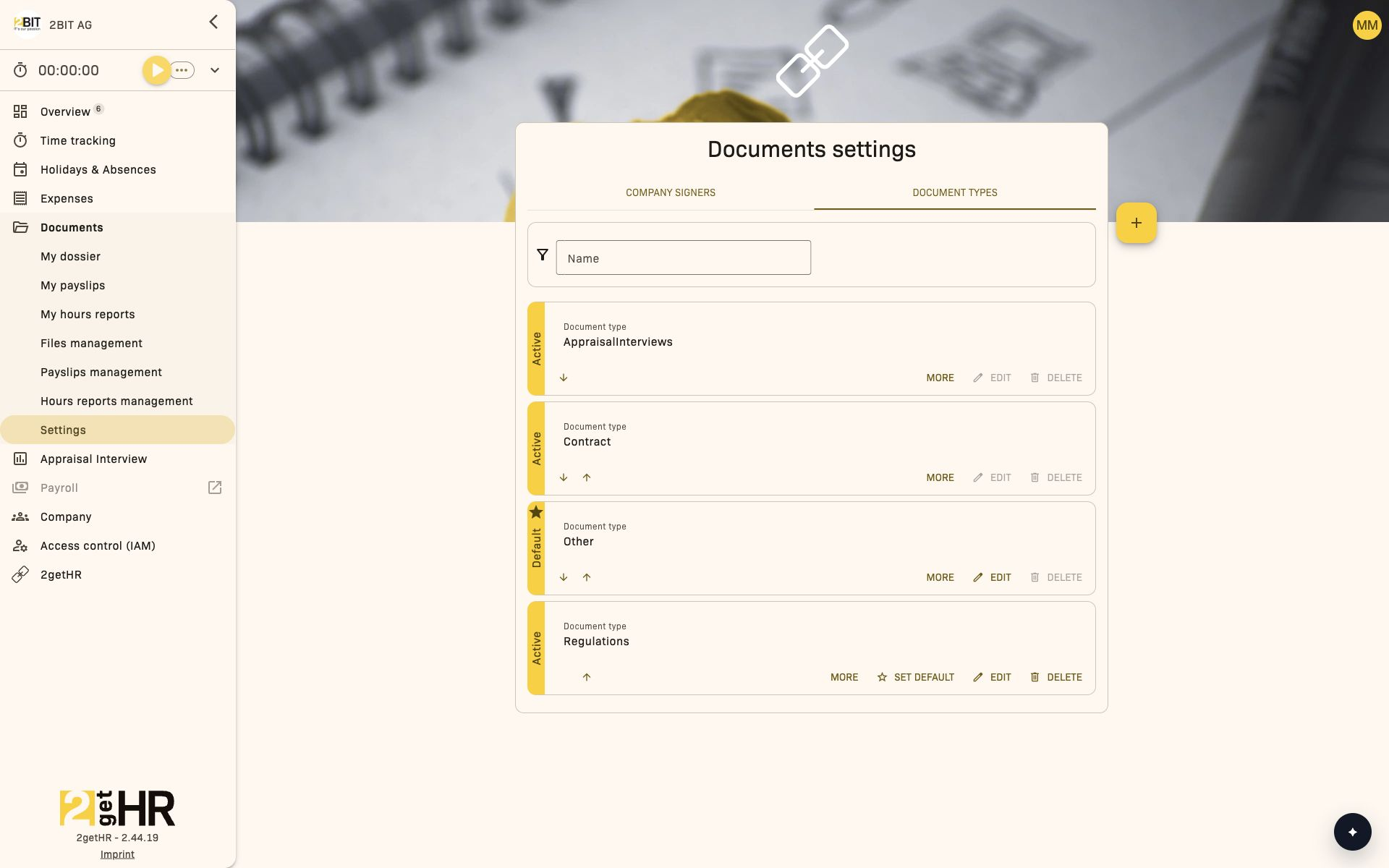
The Document types tab controls how document categories are organized on the company platform. These categories define how HR documents, such as contracts, payslips or reports, are classified and appear in document workflows.
Access: Only administrators with access to the Documents module.
The main list shows the following information:
- Document type: The label for each document type. It is displayed in the employee's language; if no translation exists, the company's main language is used.
- Active: Indicates whether a type is currently enabled for use.
- ID: Internal system identifier, displayed only if an API key exists for the company.
Available actions:
- Add: Opens a dialog for defining a new document type.
- Edit: Changes an existing custom document type.
- Delete: Removes a custom document type, provided it is not set as the default. Confirmation is required before deletion.
- Set default: Sets an active custom document type as the default. Confirmation is required before the change.
- Move: Changes the order of document types. The order here determines their appearance elsewhere, such as in selection menus or reports.
System-defined document types cannot be edited or deleted. Depending on the configuration, some system types may not appear in the list.
Filter options:
- Name: Search or filter the already loaded document types by name. The list updates after a short delay.
Document type form (Add / Edit)
The dialog for adding or editing a document type contains:
- Document type: Name of the document type. The field is required; leading and trailing spaces are removed.
- Active: Checkbox indicating whether the document type is available for use. New document types are active by default. The status of the default type cannot be changed.
After submission, the list updates automatically and shows the new or updated entry.
Common tasks
Add a new signer
- Navigate to Documents > Settings > Company signers.
- Under Add signer, select one or more verified employees.
- Click Save to add them as official company signers.
Remove a signer
- Open Documents > Settings > Company signers.
- Remove the signer from the Add signer selection.
- Click Save.
Create a new document type
- Go to Documents > Settings > Document types.
- Click Add.
- Enter a name for the new type under Document type.
- Enable Active to make it immediately available.
- Save the changes; the type appears immediately in the list.
- If needed, use Set default to make an active custom type the default and confirm the prompt.
Reorder document types
- In the Document types list, use Move next to a type to adjust its order.
- The change updates the display order across the platform. If the change cannot be applied, the system restores the previous order.
Tips and troubleshooting
- If no verified employees appear in Add signer, verify employees on the Staff page.
- At least one verified employee must remain selected in the signer selection.
- Employees under Employees with expired verification cannot be removed or changed on this page.
- A document type that is already the default or inactive cannot be set as a new default. First activate another custom type and set it as the default.
- System-defined document types cannot be edited or deleted.
- Only administrators with access to the Documents module can view or change these settings; if the area is missing, contact your system administrator.